Shipping confirmation email template for Shopify, with 3 versions to send
Summarize with AI
A shipping confirmation email tells a buyer the order has left, with the carrier and the tracking number. Copy the wording in this shipping confirmation email template and swap each bracket. Shopify sends the email when you mark an order as fulfilled with Notify customer turned on, so the only other job is that switch.
A parcel leaves at 3pm and the buyer hears nothing. Two days later you get a message asking whether the order was ever sent. The email that answers it is one switch on the fulfill screen.
What does Shopify's shipping confirmation email already include?
Shopify sends a Shipping confirmation when you mark an order as fulfilled, and it shows the tracking number you added.
Find it in Settings, then Notifications, then Customer notifications, under "Order processing". Its row reads "Sent when you mark an order as fulfilled". Unlike the order confirmation, you can switch this one off order by order.
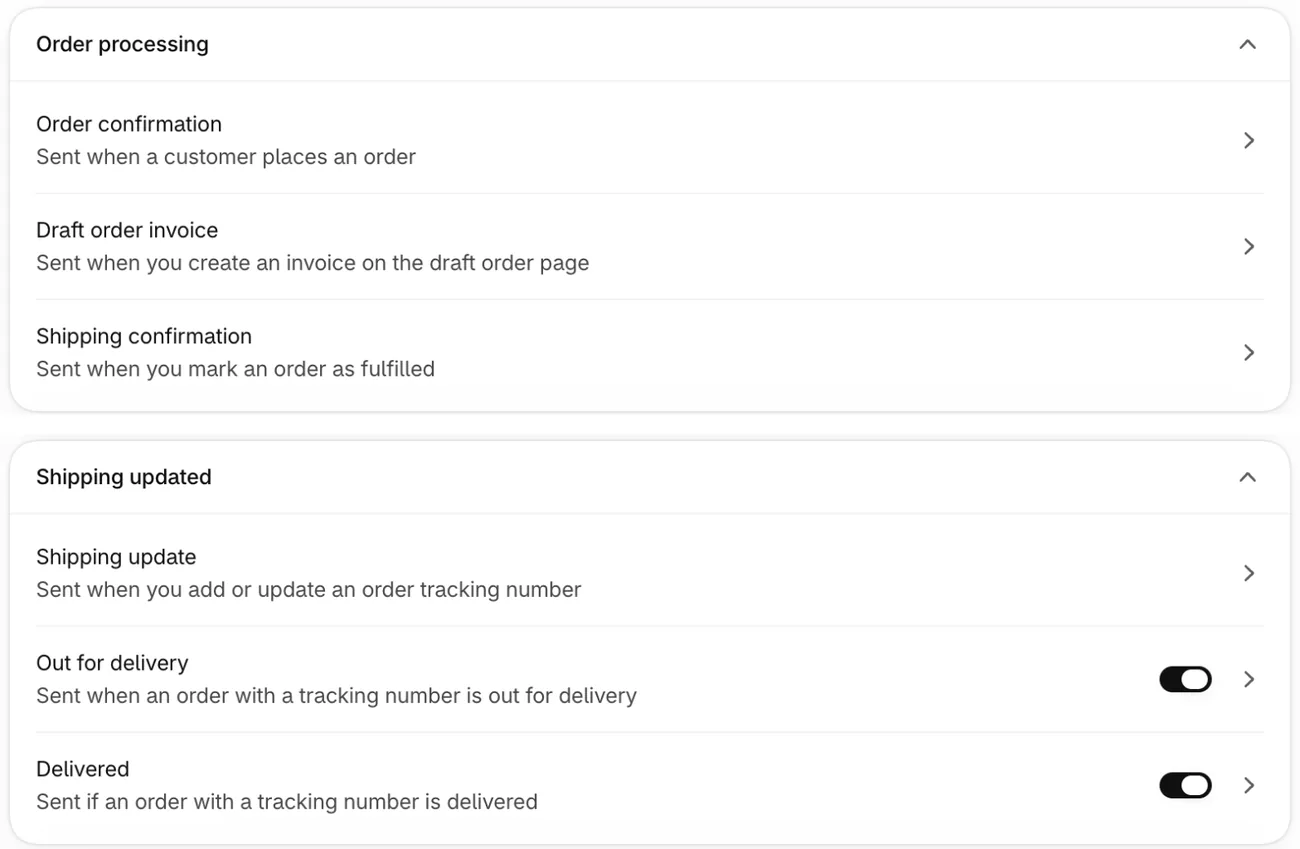
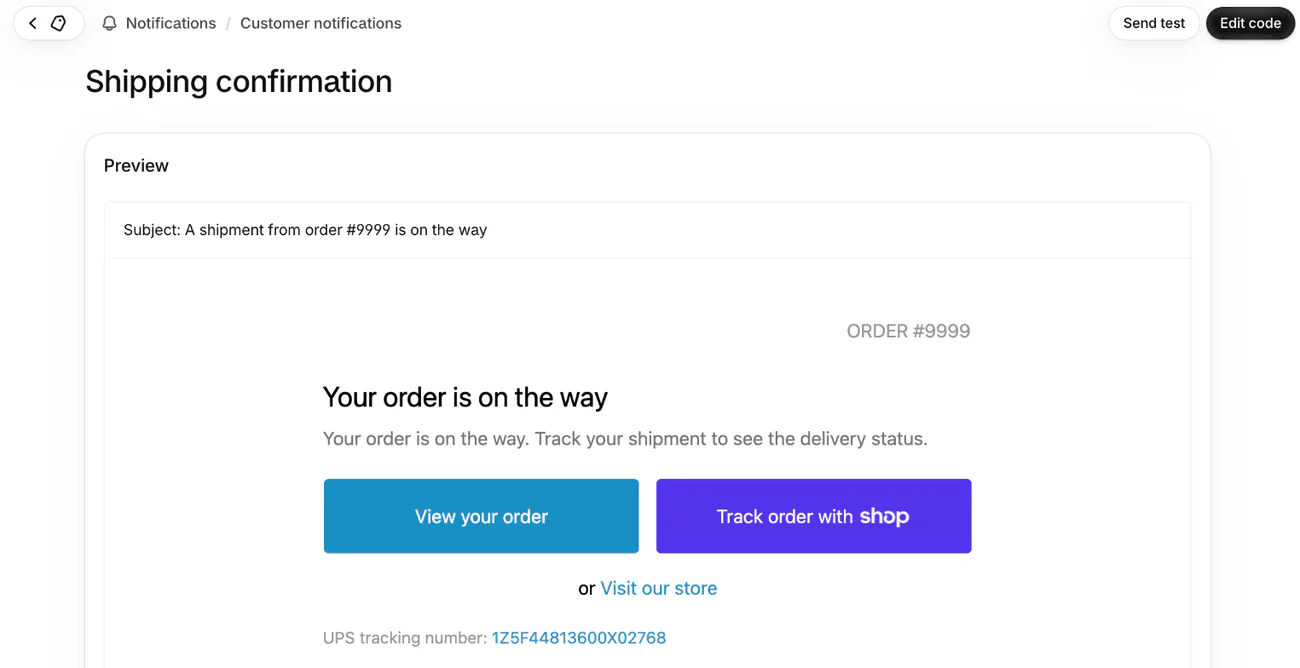
The default can also carry the order status link and a button to track the parcel in the Shop app, according to Shopify's Help. Click "Shipping confirmation" in that list to see its preview before you write anything, so your sentences add to the email and do not repeat it.
Three more shipping emails follow: Shipping update when you add or change tracking, then Out for delivery and Delivered when the carrier reports them. The post-purchase email flow covers all four. Shopify sends these by itself, and ecommerce automation shows which other store jobs can run on their own.
Shipping confirmation email template to copy
Free to use. When you add a tracking number, Shopify prints it and the carrier link itself, so the template is only the sentences around them. Copy a version, change the names, carrier, dates and links to yours, and drop the square brackets.
Version 1: the standard email
Subject. [Your order #1042 is on its way]
Heading. [It's on its way, Sam.]
Opening line. [Your order left our studio today with [UPS]. Track it with the link in this email.]
Shopify fills in. The tracking number and the carrier link.
Delivery. [[UPS] expects to deliver in [3 to 5] business days. The tracking link shows where it is.]
If something is wrong. [Wrong address, or the parcel looks damaged? Reply to this email and we'll sort it out.]
Returns. [Not what you expected? Send it back within 30 days: [link to your returns page].]
Sign-off. [Thanks, Mia at Cedar & Clay]
Version 2: one parcel of two
Subject. [Part of order #1042 is on its way]
Opening line. [The lamp left today with [UPS]. The shade ships on [Friday] in its own parcel.]
What next. [Each parcel has its own tracking number and its own email, so you'll hear from us again when the shade leaves.]
Version 3: a pre-order that is ready
Subject. [Your pre-order #1042 has shipped]
Opening line. [Thanks for waiting. Your board game left today, on the date we promised.]
Delivery. [Tracking is in this email. [UPS] expects to deliver in [3 to 5] business days.]
Template written and Shopify settings checked November 24, 2026.
- Use the carrier's own estimate for your service, never a date you guessed.
- Keep the first line about the parcel. An offer, if you add one at all, goes lower down.
Shipping confirmation email subject lines
Keep the order number and "on its way" or "shipped" in the subject, so a buyer can find the email in their inbox later. In the preview, Shopify's own subject reads "A shipment from order #9999 is on the way".
- Your order #[1042] is on its way
- [First name], your order has shipped
- Order #[1042] shipped with [UPS]: track it here
- On its way to [city]: order #[1042]
- Part of order #[1042] has shipped
- Your pre-order #[1042] has shipped
How do you make Shopify send the shipping confirmation email?
Shopify sends it when you mark an order as fulfilled with Notify customer turned on, and only when the order has the customer's email address.
- Open Orders and click the order.
- In the Unfulfilled section, click "Mark as fulfilled".
- Type the number in "Tracking number" and pick the "Shipping carrier".
- Turn on "Notify customer", the switch under the tracking number box.
- Click "Mark as fulfilled" again.
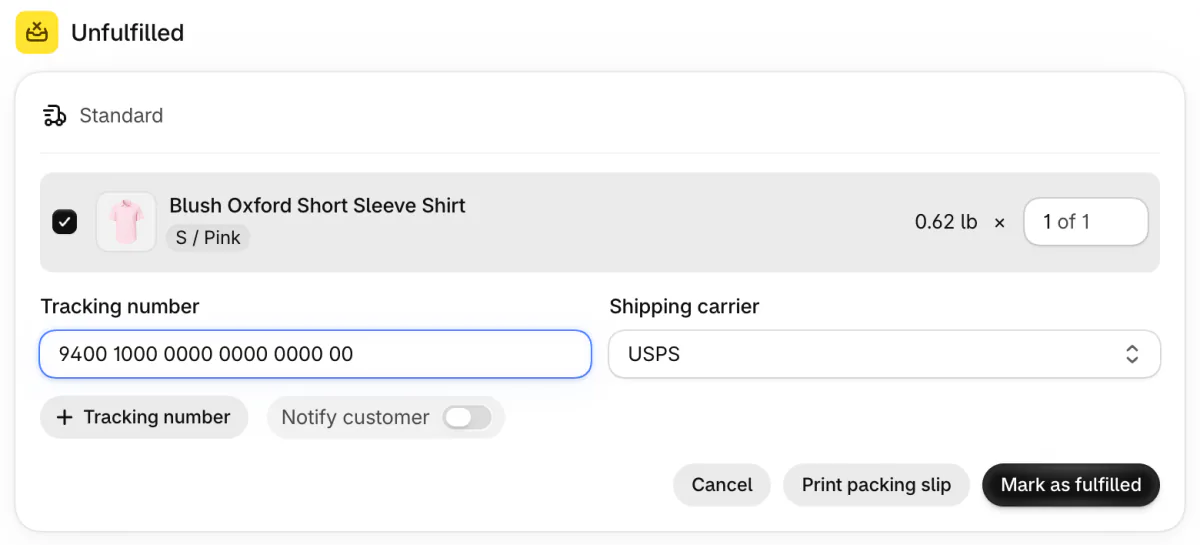
The same choice has other names on other screens: "Send a notification to the customer" in the Shopify mobile app and when you fulfill in bulk, and "Send shipping information to customers" when you buy a label in Shopify.
To skip the email on one order, turn the switch off. Left it off by mistake? Open the order. In the Fulfilled section, click "Add tracking", or open the section's menu and click "Edit tracking" to change a number already there. Make sure "Notify customer" is on and click "Save". Shopify's Help describes the email that goes out then as a Shipping update.
Shopify does not text shipping updates, so a buyer who left only a phone number gets no shipping email. To collect an email from every buyer, open Settings, then Checkout, and set "Customer contact method" to "Email".
How do you edit the shipping confirmation email in Shopify?
Your logo and color are set once for every email, and the words of this one are edited on their own, through "Edit code".
The steps match the order confirmation, so the order confirmation email template has the full walk-through. Here, open "Shipping confirmation" under Customer notifications and click "Edit code", the button that opens the email's own editor. You must confirm your sender email first. Change the subject, swap only the plain sentences in the body, click "Preview", try "Send test", then click "Save".
Not comfortable with code? Change only the subject, which is a plain text box, and leave anything in curly brackets alone. Shopify suggests hiring a Shopify Partner for anything beyond that.
Will editing the shipping confirmation email remove the order status link?
It can. Shopify's Help says Shopify can't put the order status link into a shipping confirmation you have customized, so keep the link or button that is already there.
The rule covers the shipping confirmation, the order confirmation and the shipping update alike, and the order confirmation page walks through the fixes. To check whether yours was customized, open "Shipping confirmation", click "Edit code" and look under the email body. "Revert to default" is greyed out on a template nobody has changed.
Check each change on a test order. Place one with Shopify's Test payment gateway, which needs a paid plan, fulfill it with a tracking number and Notify customer on, then open the email and try the link. Turn test mode off when you finish, because customers can't place live orders while it is on.
What if the order ships in parts, runs late or goes by pickup?
Each shipment is fulfilled on its own, so a buyer can get more than one Shipping confirmation for one order. That happens when you ship part of an order yourself, and when checkout splits an order, as it does for pre-order items, subscription items and items in different shipping profiles. Version 2 fits, and partial fulfillment on Shopify walks through the screen.
To warn one buyer that a parcel is late, open the order, click the customer's email in the Contact section and write to them. The customer service email templates have the wording.
A pickup order gets a Ready for pickup email when you mark it ready. A local delivery order gets a delivery confirmation when you mark it delivered, and no Out for delivery or Delivered email, because those come from carrier tracking events.
FAQ
Questions, answered
-

14-day free trial
Explore Sledge on your store before you decide to commit.
-

No credit card required
Start improving your store with no upfront commitment.
-

Setup in minutes
Get Sledge running without a lengthy setup process.
-

Built to grow sales
Turn shopper behavior into actions that help you sell more.
What is a shipping confirmation email?
A shipping confirmation email tells a buyer their order has left, with the carrier and the tracking number. On Shopify it is the Shipping confirmation notification, sent when you mark an order as fulfilled. It is a different email from the Order confirmation, which goes out when the buyer pays.
How do I send a shipping confirmation email in Shopify?
Open the order, click Mark as fulfilled in the Unfulfilled section, add the tracking number and turn on Notify customer, then click Mark as fulfilled again. The switch works only when the order has the customer's email address. In the Shopify mobile app, the same switch reads Send a notification to the customer.
Can I turn off Shopify's shipping confirmation email?
Yes, one order at a time. Turn off Notify customer when you mark the order as fulfilled. Shopify lists Shipping confirmation among the notifications you can deactivate this way. The Order confirmation is not on that list. A Shopify Plus store can also ask Shopify Support to switch specific notifications off.
Why did my buyer not get the shipping confirmation email?
Check three things. Notify customer was off when you fulfilled the order. The order has no customer email address, for example because the buyer left only a phone number, and Shopify does not text shipping updates. Or the email is in a spam folder. If it did go out, find it in the order's Timeline and click Resend email.
What is the difference between a shipping confirmation and a shipping update?
A shipping confirmation goes out once for each shipment, when you mark that shipment as fulfilled. A shipping update goes out when you add or change tracking later. Out for delivery and Delivered follow from the carrier's tracking events. Local delivery orders get a delivery confirmation instead, when you mark the order as delivered.
A shipping email follows a sale. What about the shoppers who left?
Sledge doesn't send or edit your shipping confirmation email. Shopify does. Sledge works on the store before the sale and just after it: search, filters, bundles, a cart drawer and a Thank You Page offer shown after payment. Try it free for 14 days. Growth Intelligence turns on when you pick a paid plan. It reads your store's searches, carts and orders, and totals what its suggested fixes could add in one figure, labeled "Est. potential".