
Skip to content

Vesture

Our first free theme is made for fashion and apparel stores with enough products to make browsing matter.

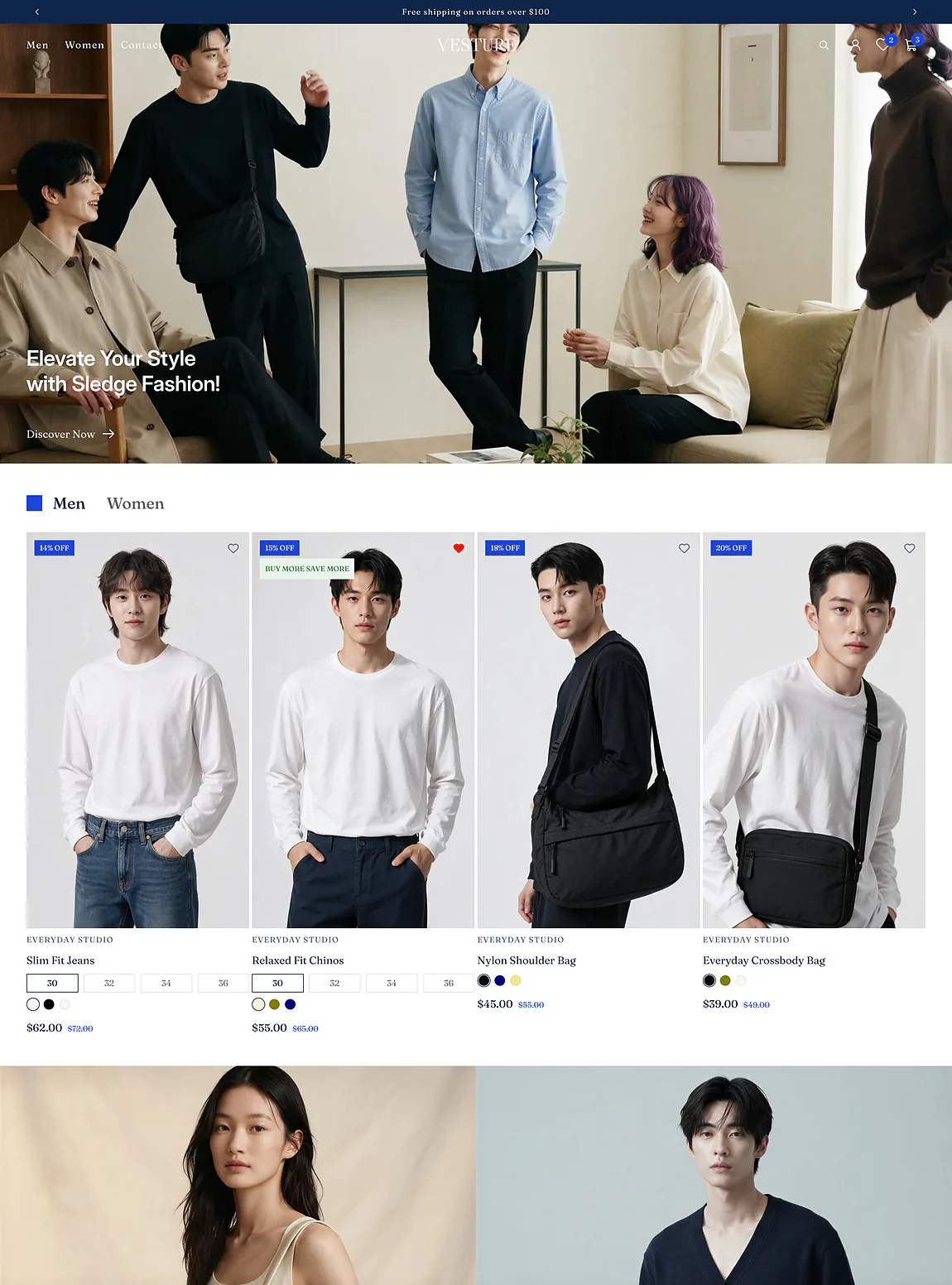
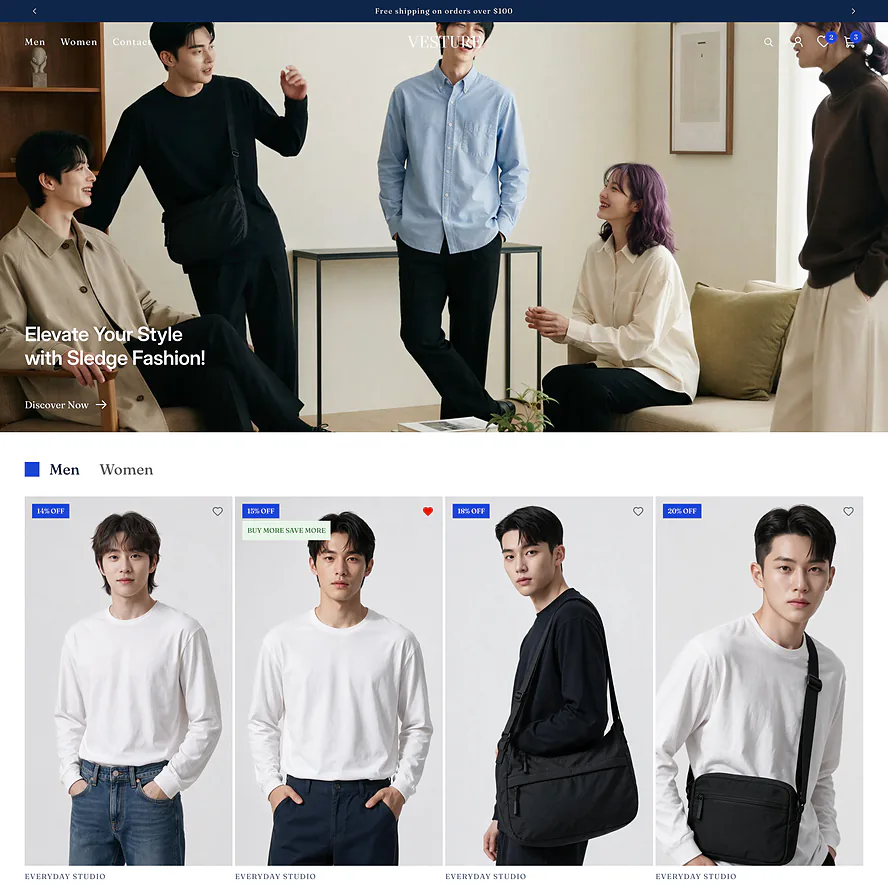
The Vesture homepage: a full-width hero of models in casual wear under a large headline, above a Men and Women product grid with sale badges, sizes, colour swatches and prices.

Vesture screenshots

Vesture home page: a full-width hero of models in casual wear under a large headline, a Men and Women product grid with sale badges, sizes and colour swatches, split Women's and Men's collection banners and new arrivals.
Home page
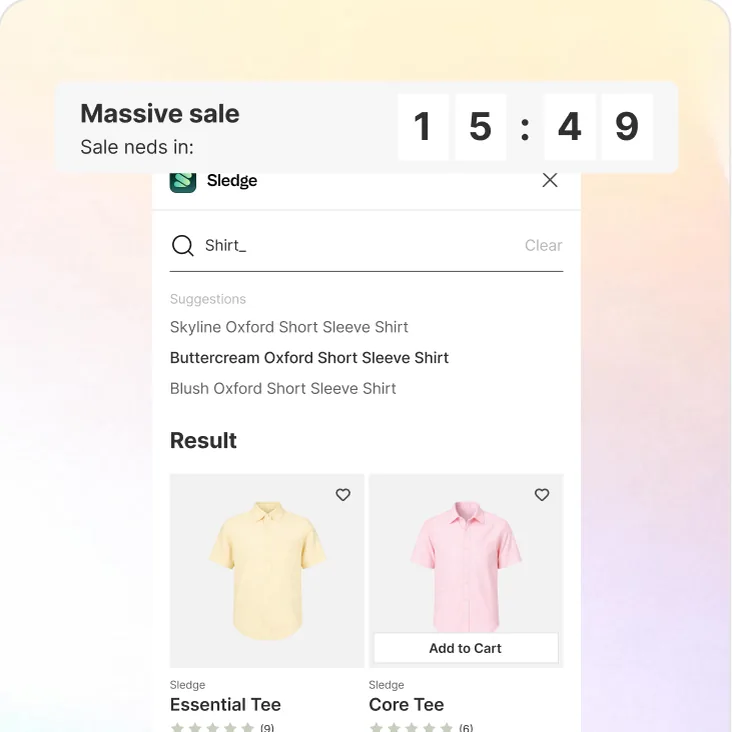
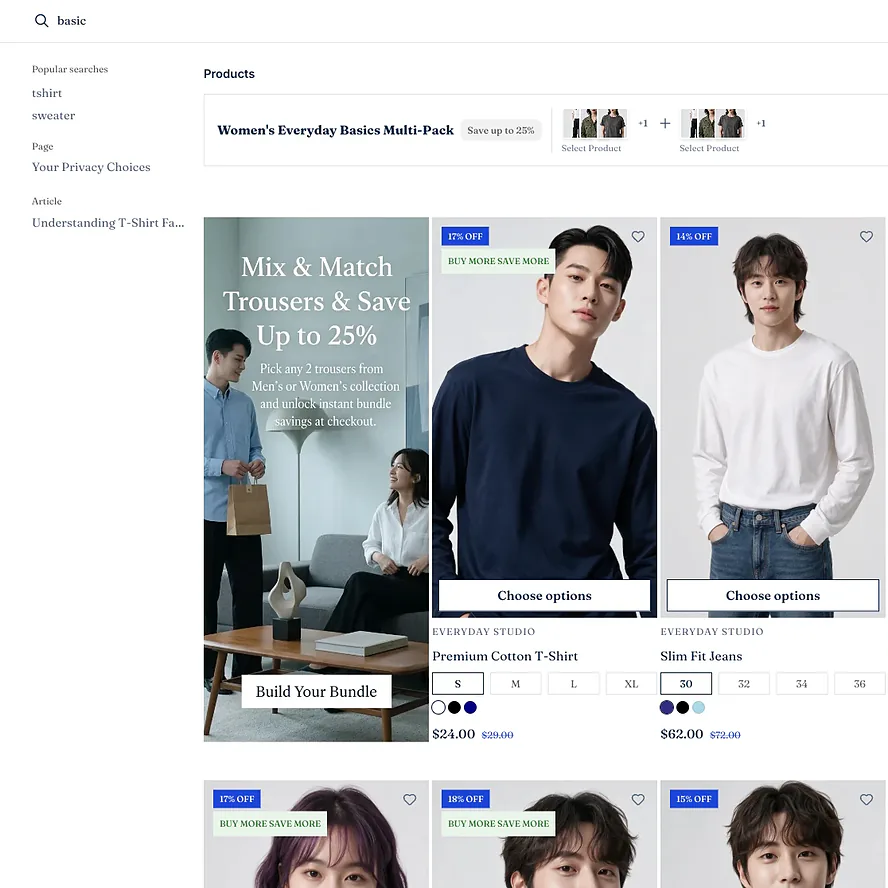
Sledge instant search open on Vesture for the query basic: popular searches, a matching page and article, a Women's Everyday Basics Multi-Pack bundle offer, a Mix and Match promotional banner, and product cards with discount badges, sizes, colour swatches and prices.
Instant search by Sledge
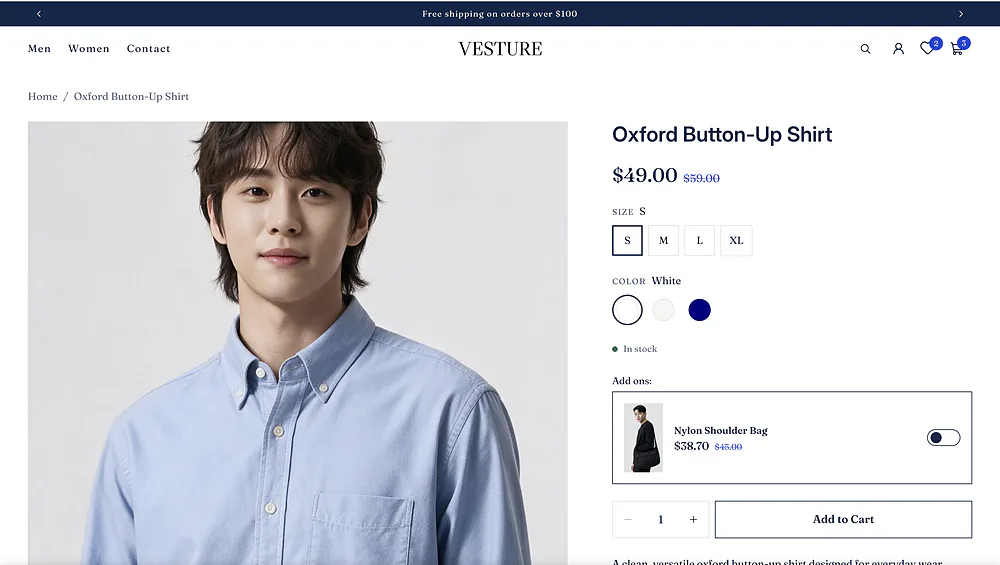
Vesture product page for the Oxford Button-Up Shirt with a Sledge add-on: the sale price, size and colour options, a discounted Nylon Shoulder Bag add-on with a toggle, the quantity selector and Add to Cart. +10 more screenshots
Product add-ons by Sledge

What Sledge runs on Vesture

Bundle

Fixed bundles, Buy X Get Y, volume discounts, add-ons and build-your-own all run from one place, on one bill. The matching add-on is offered on the product page, built from what your shoppers actually buy together, and the cart keeps selling after that.

  • Fixed Bundles
  • Free Gift
  • Buy X Get Y
  • Subscription
  • Volume Discounts
  • Shipping
  • Build Your Own Bundle
  • Add-ons
Explore feature
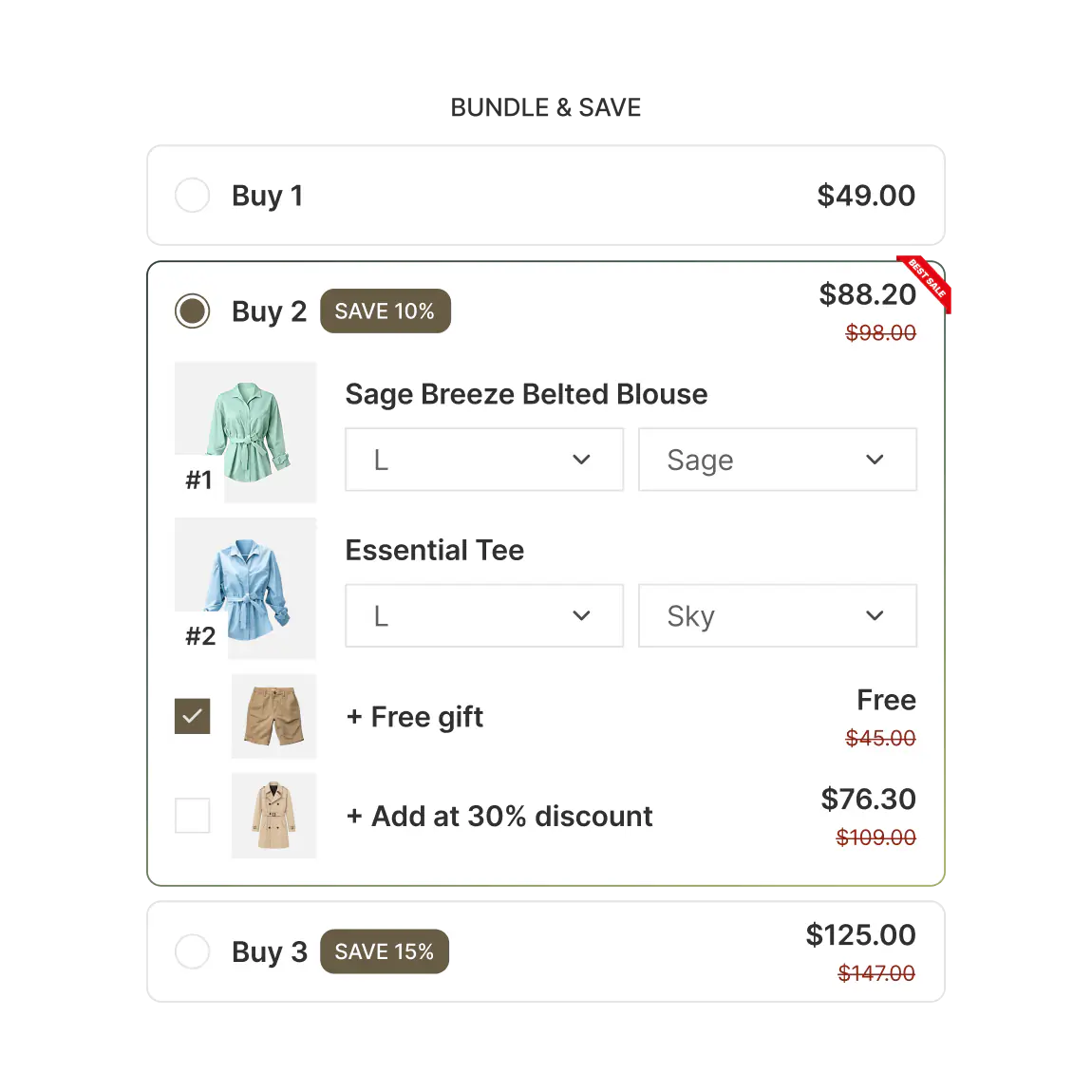
A bundle and save widget offering buy one, buy two at ten percent off and buy three at fifteen, with the buy two tier opened to show two garments, a free gift and a thirty percent add-on.

Merchandising

Order a collection by rule instead of by hand. Boost the bestsellers, bury what is sold out, pin the new arrivals, and the rule holds the collection in that order as stock moves under it.

  • Pin Product
  • Filter Product
  • Boost Product
  • Inject Product
  • Demote Product
  • Place Bundle
  • Hide Product
  • Insert Banner
Explore feature
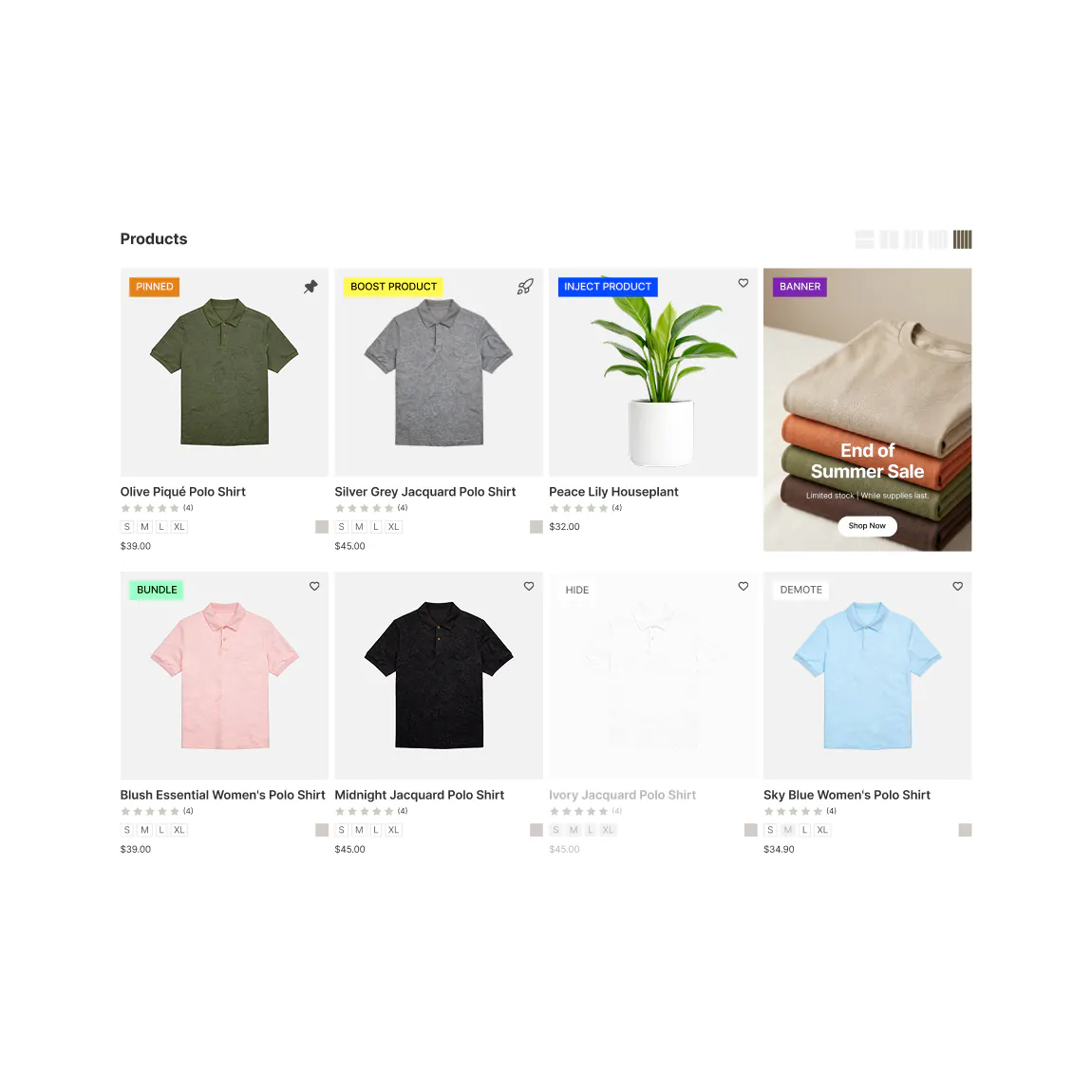
A products grid where individual cards carry pinned, boost, inject, banner, bundle, hide and demote labels.

Pre-Order

Sell a product before it lands. Open one product or a whole drop, take a deposit where your payment gateway allows one, and open a set of products as a single pre-order so a drop that ships together is reserved together.

  • Pre-order Product
  • Pre-order Bundle
Explore feature
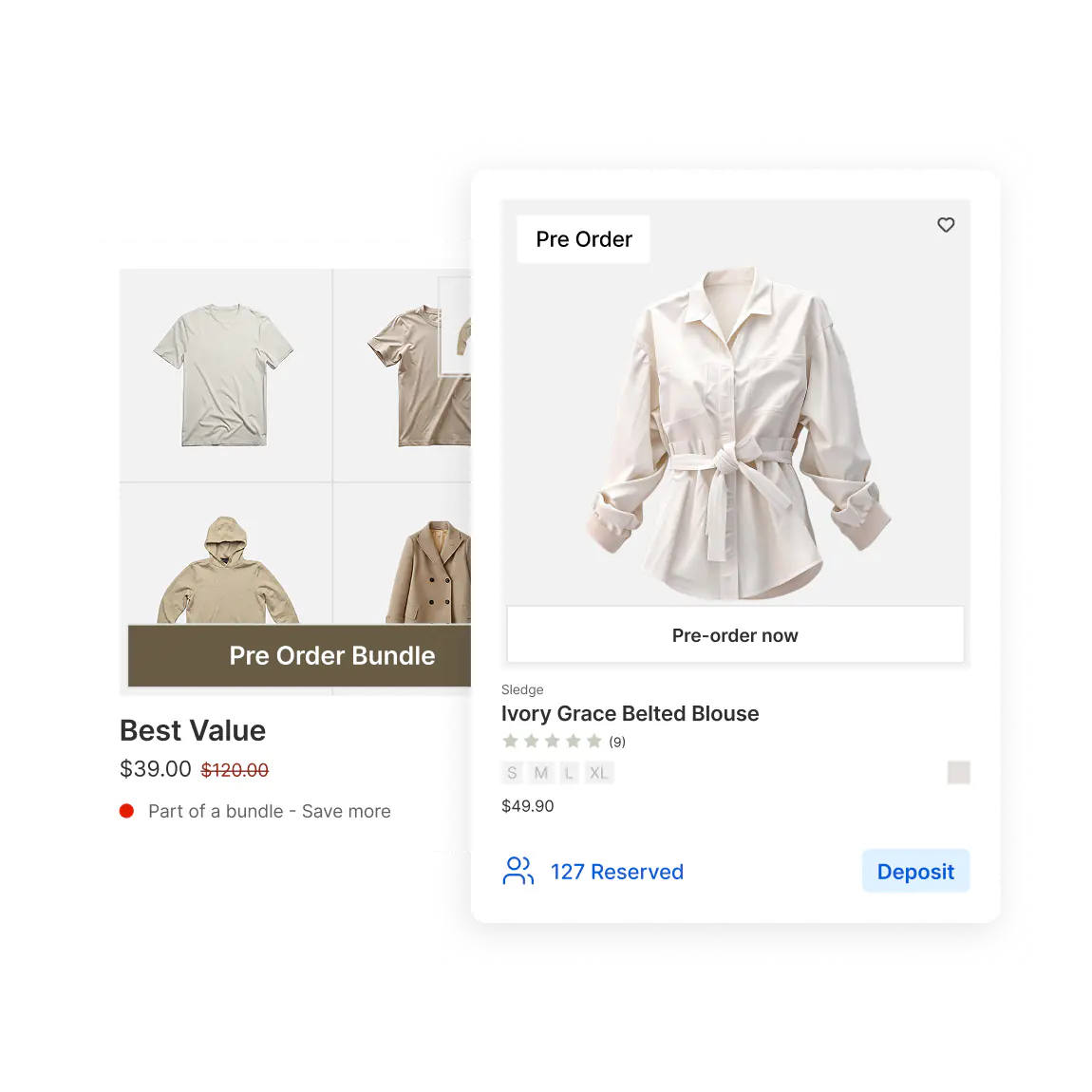
A pre-order bundle card beside a product page with a Pre Order badge, a pre-order button and a reserved count.

Back in stock

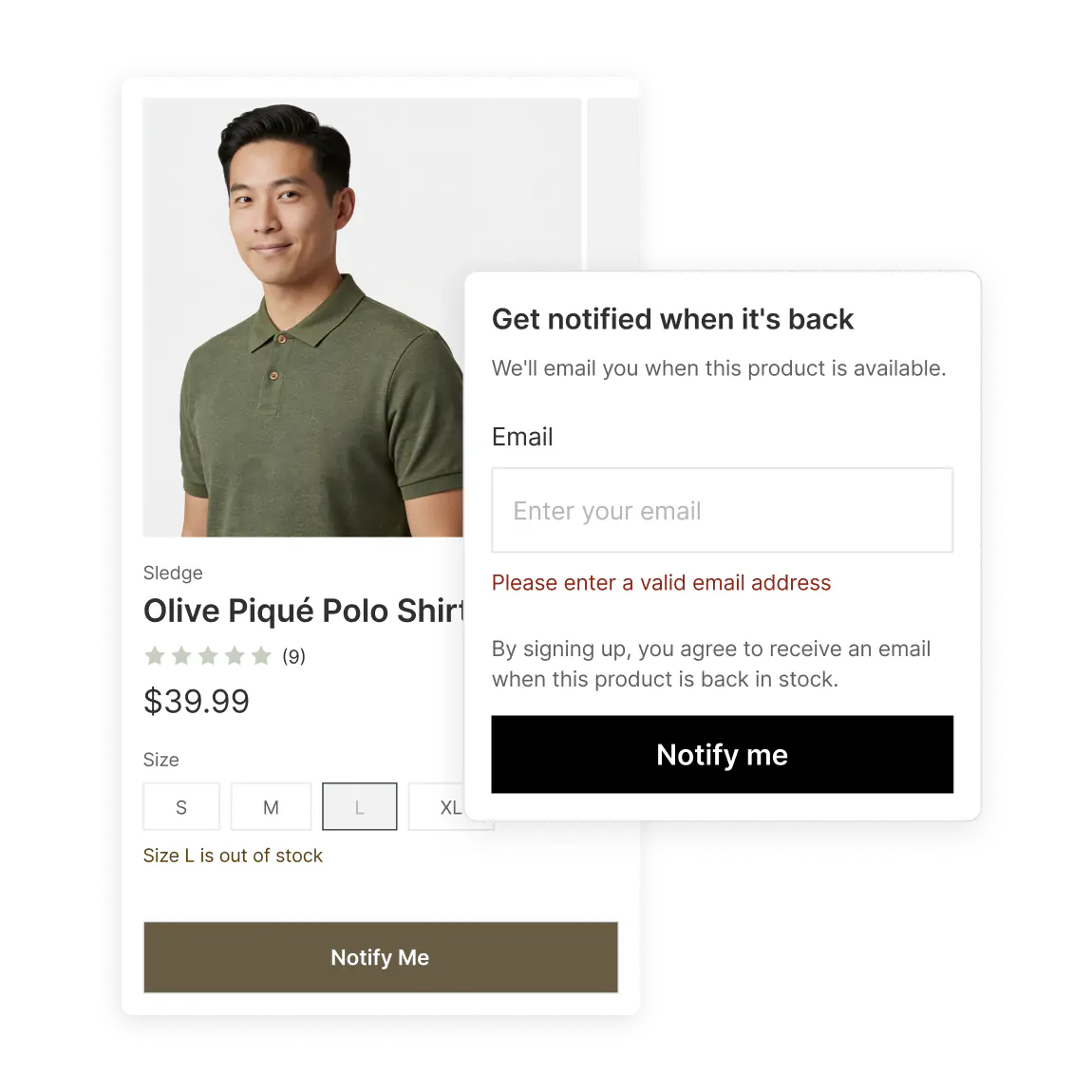
A Notify me form on the product page and on the product card. Sledge collects the demand while you are out of stock, then emails the list the moment it returns.

Explore feature
A product page for a size that is out of stock, beside a Notify me form that collects an email address.

Cart Drawer

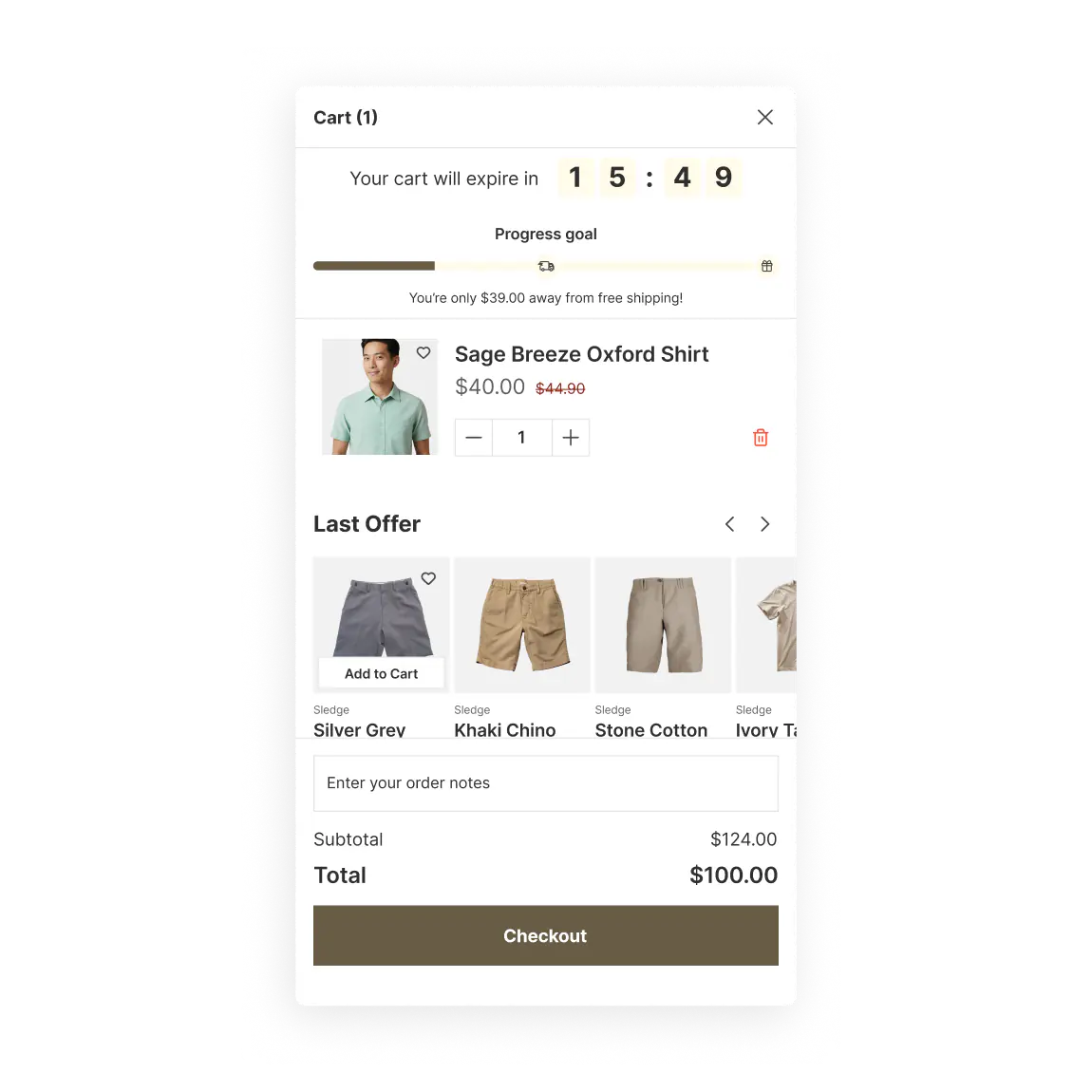
The cart opens as a drawer over the page instead of loading a cart page, so nobody leaves the collection to check what they have. You arrange it from blocks: recommendations, a bundle offer, a free shipping bar, a countdown.

  • Pin
  • Filter
  • Boost
  • Inject Product
  • Demote
  • Bundle
  • Hide
  • Banner
Explore feature
A cart drawer with an expiry countdown, a progress bar towards free shipping, one shirt, a last offer carousel, an order note field and a checkout button.

Product Recommendation

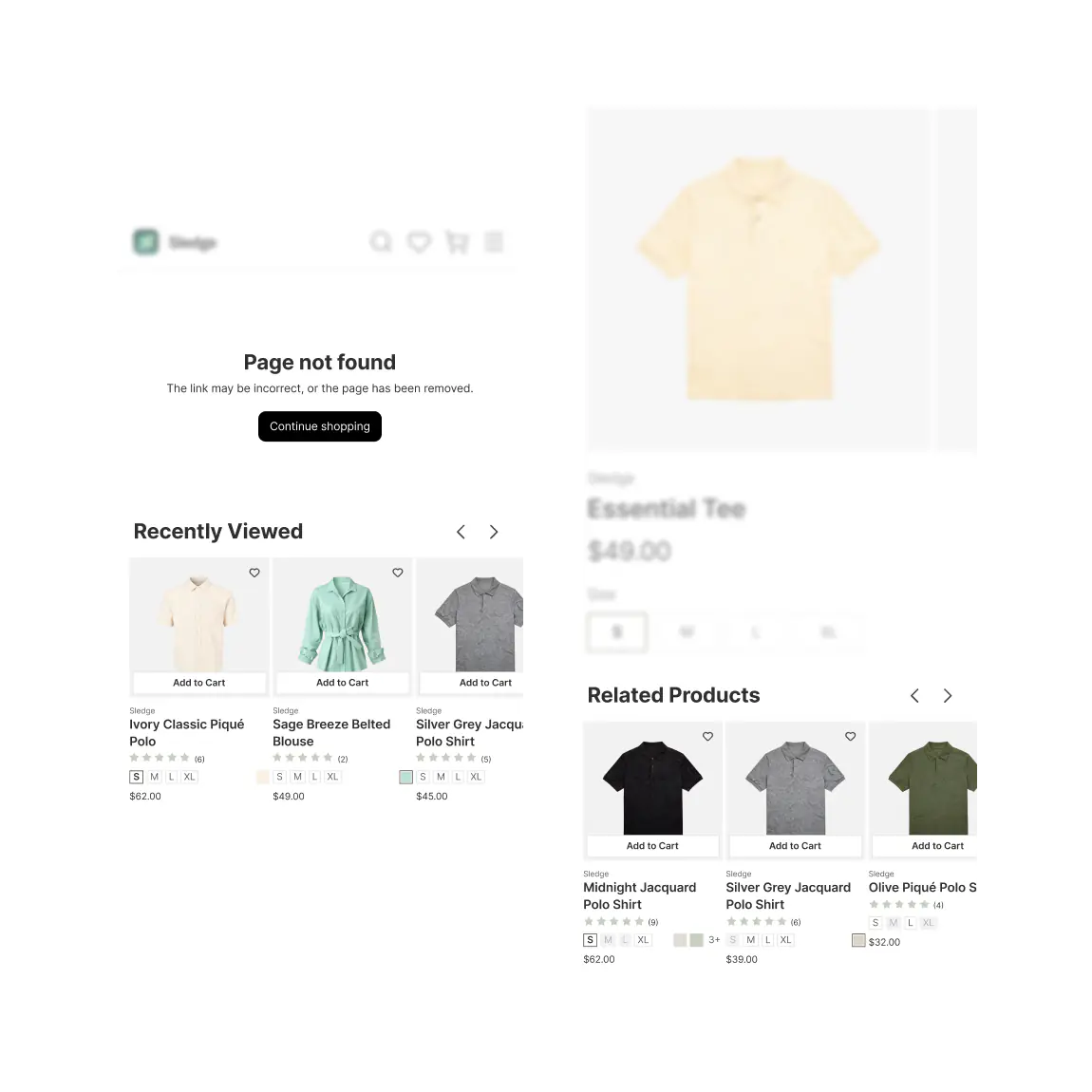
Recommendations built from what your shoppers actually do, not from a generic rule. Bought together, recently viewed and trending, placed where they get seen.

  • Best Seller
  • Merchant's Picks
  • Trending
  • Recently Purchased
  • New Arrivals
  • Most Viewed
  • Recently Viewed
  • Collection Best Seller
  • Related Products
  • Product by Collection
  • Frequently Bought
  • Shop the Last
  • Personalized Picks
Explore feature
A recently viewed carousel on a not-found page, beside a related products row on a product page.

Filter

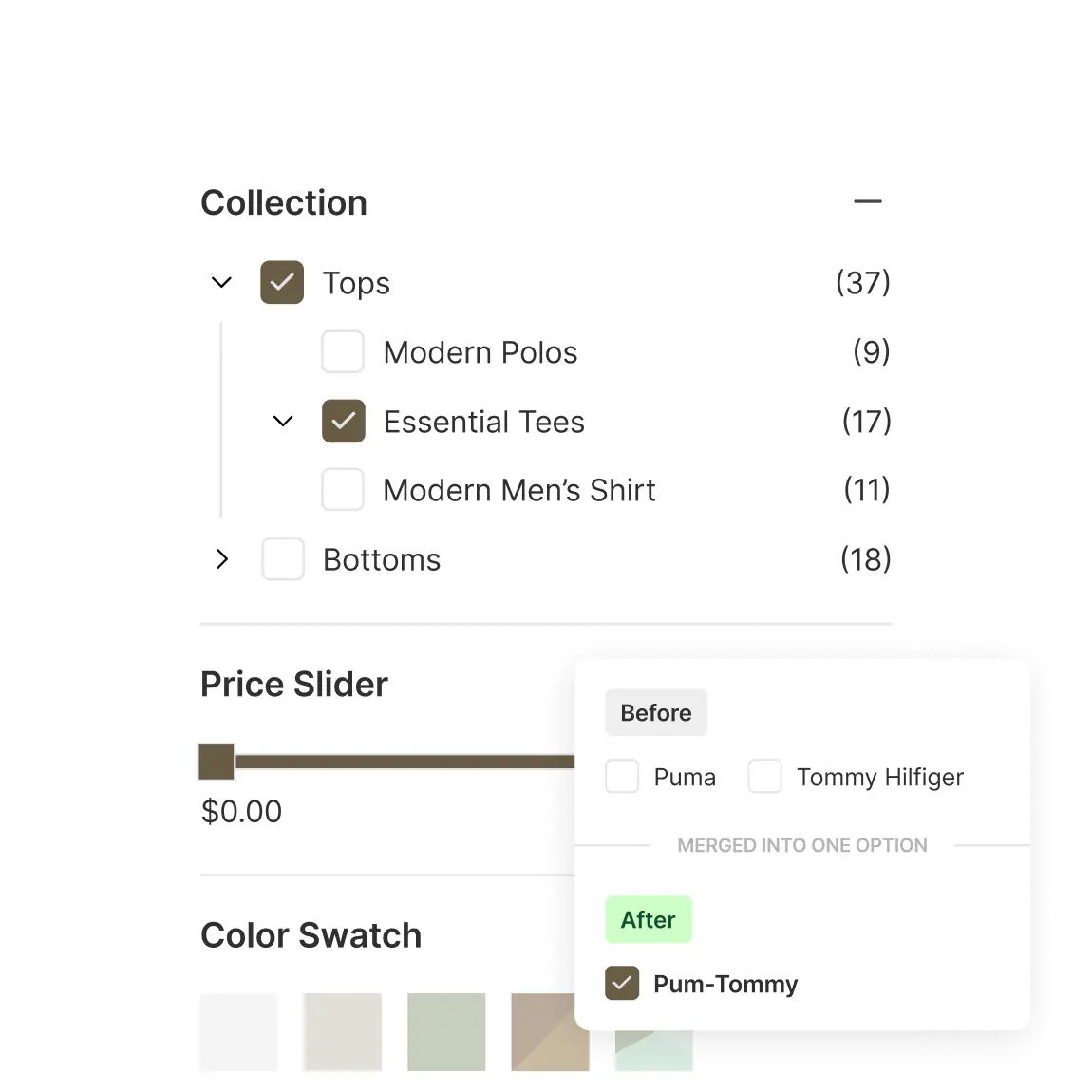
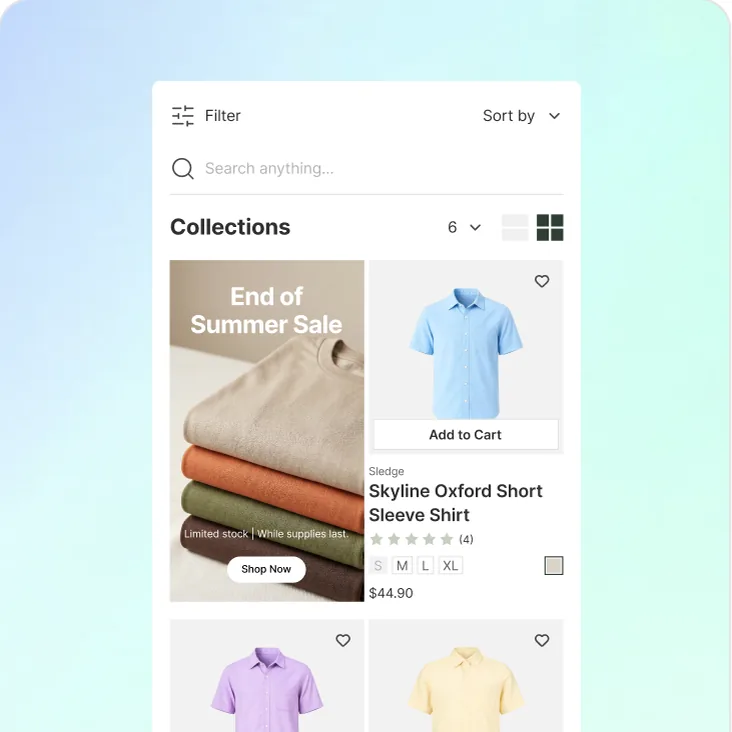
Build filter groups from your metafields, tags, variant options, vendor and price. Colour and image swatches render as filter values, duplicate colours collapse into the one name you chose, and every checkbox carries its own product count. Results answer in place, with no page reload.

  • Merge Value
  • Filter Group
  • Colour Swatch
  • Filter Layout
  • Image Swatch
  • Display Settings
Explore feature
A collection filter panel with nested categories and product counts, a price slider and colour swatches, beside a panel merging two vendor names into one option.

Thank you page

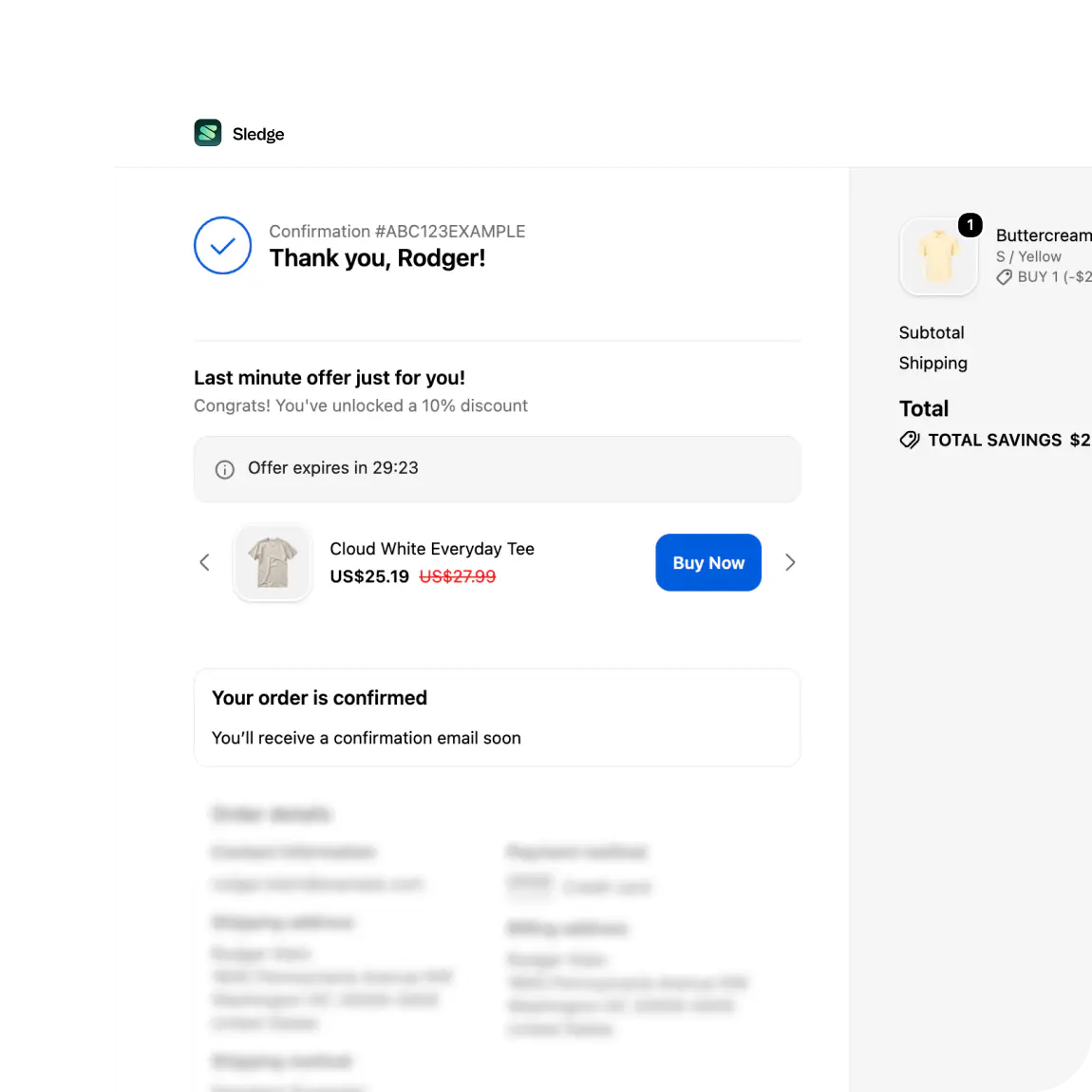
The order confirmation is the one page every buyer reads. Sledge puts one more offer on it, after the payment has already cleared, so the first sale is already safe when the second is offered.

Explore feature
An order confirmation page carrying a timed last minute offer above the order details.

And there is more in Sledge

The theme is only one part of the storefront. These tools can be added from Sledge when they fit the way your store sells.

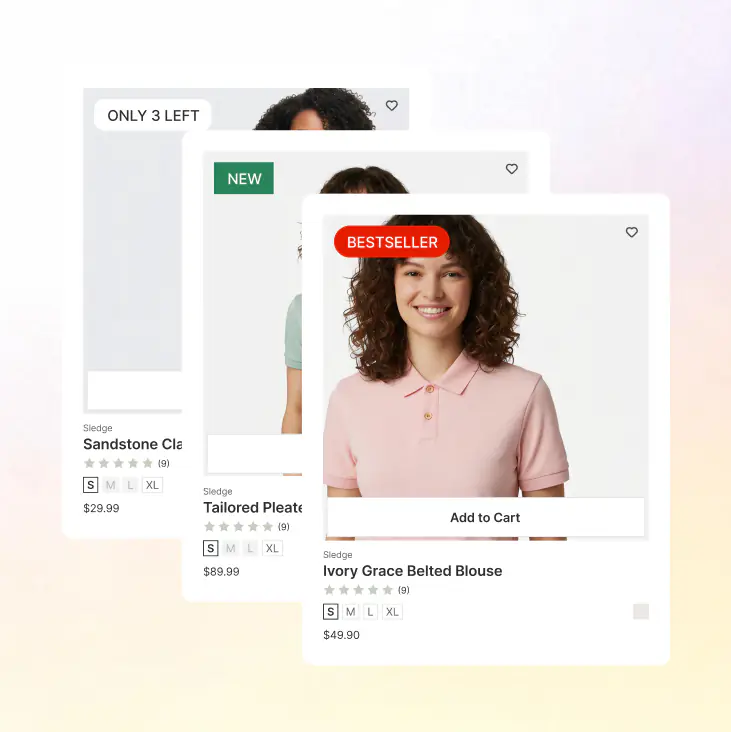
  • Overlapping product cards carrying Only 3 Left, New and Bestseller badges.

    Badge Campaign

    Only 3 left, New, Bestseller. Set a badge on a product or a collection, and it appears on every card and product page it reaches.

How to install Vesture

From the download to Sledge running on Vesture. Keep this page open while you work through it.

Upload Vesture

  1. Download the zip

    Use the Download theme button below these steps. If Safari unzips it, turn off Open safe files after downloading in Safari > Settings > General and download it again.

  2. Upload it to Shopify

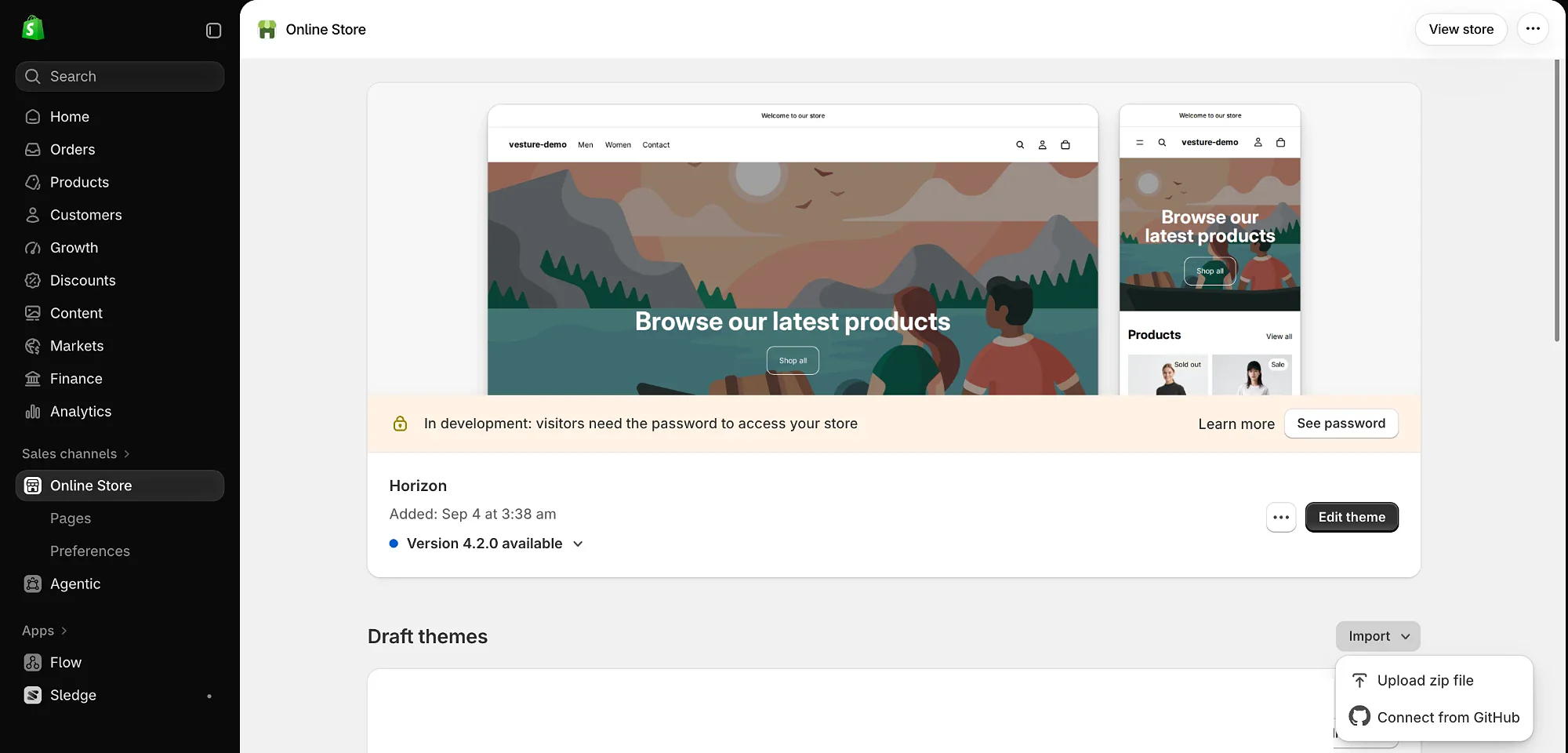
    In Shopify admin open Online Store. Next to Draft themes, click Import > Upload zip file and choose vesture.zip. Vesture lands in your drafts without replacing your live theme.

    Shopify admin, Online Store: the Import menu beside Draft themes is open, showing Upload zip file. (open full size)

Install Sledge

  1. Install Sledge from the Shopify App Store

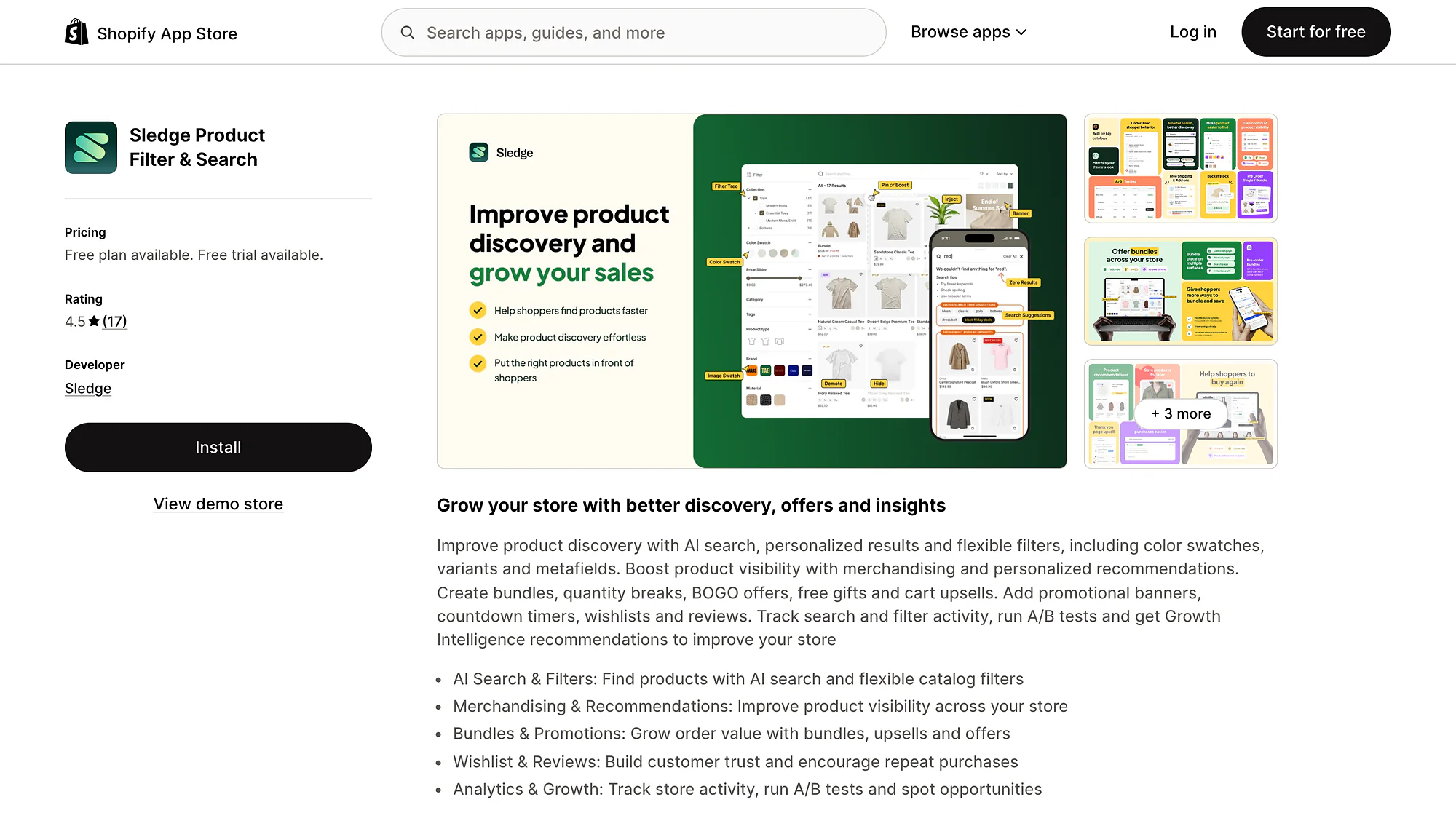
    Click Install on the listing. A 14-day free trial is available.

    The Sledge Product Filter & Search listing on the Shopify App Store, with the Install button under pricing and rating. (open full size) Open Sledge on the App Store
  2. Click Enable in theme

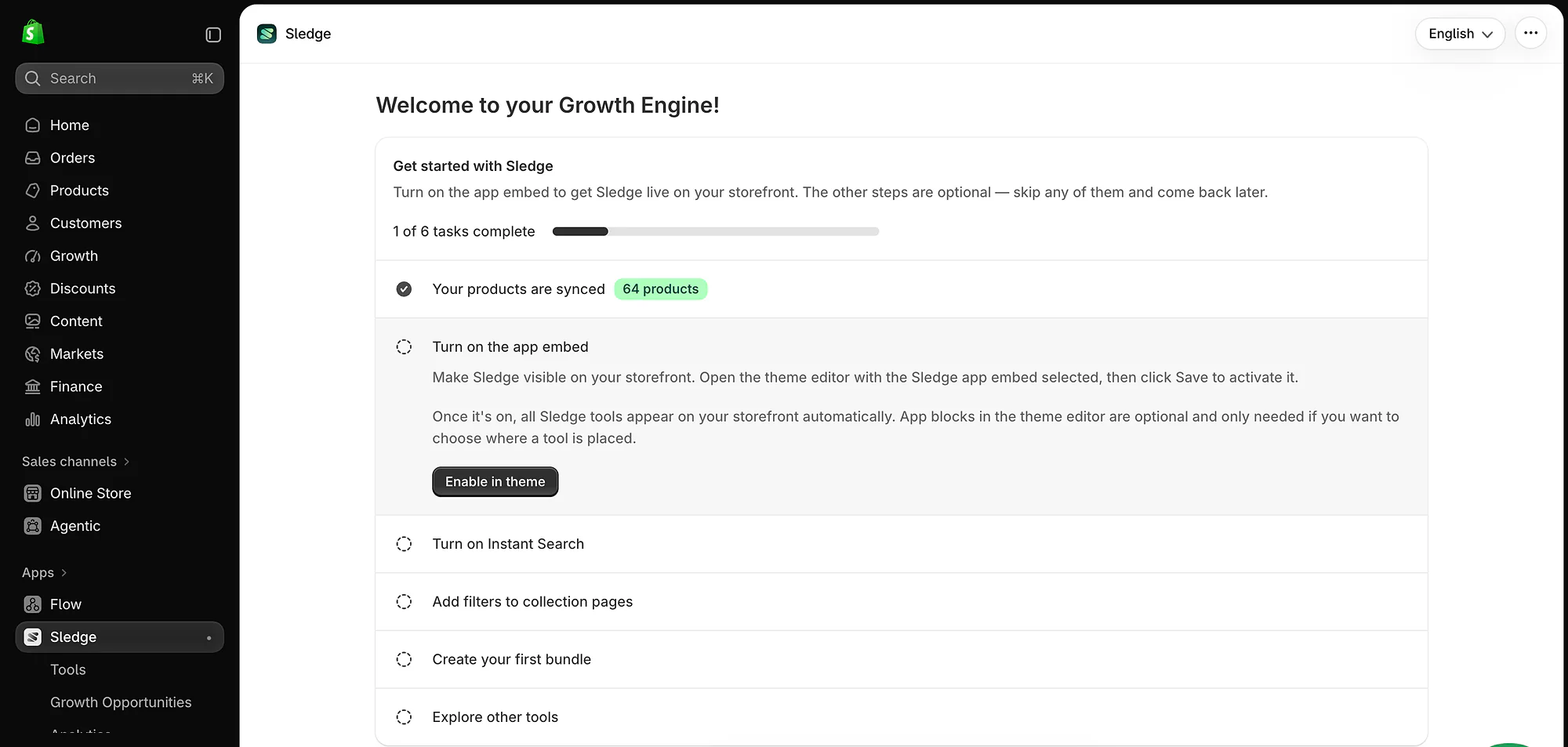
    Open Sledge in Shopify admin. The first task under Get started is Turn on the app embed: click Enable in theme. It opens the theme editor at App embeds.

    The Sledge onboarding in Shopify admin, Welcome to your Growth Engine, with the Turn on the app embed task open and its Enable in theme button. (open full size)
  3. Turn on Sledge Core and Save

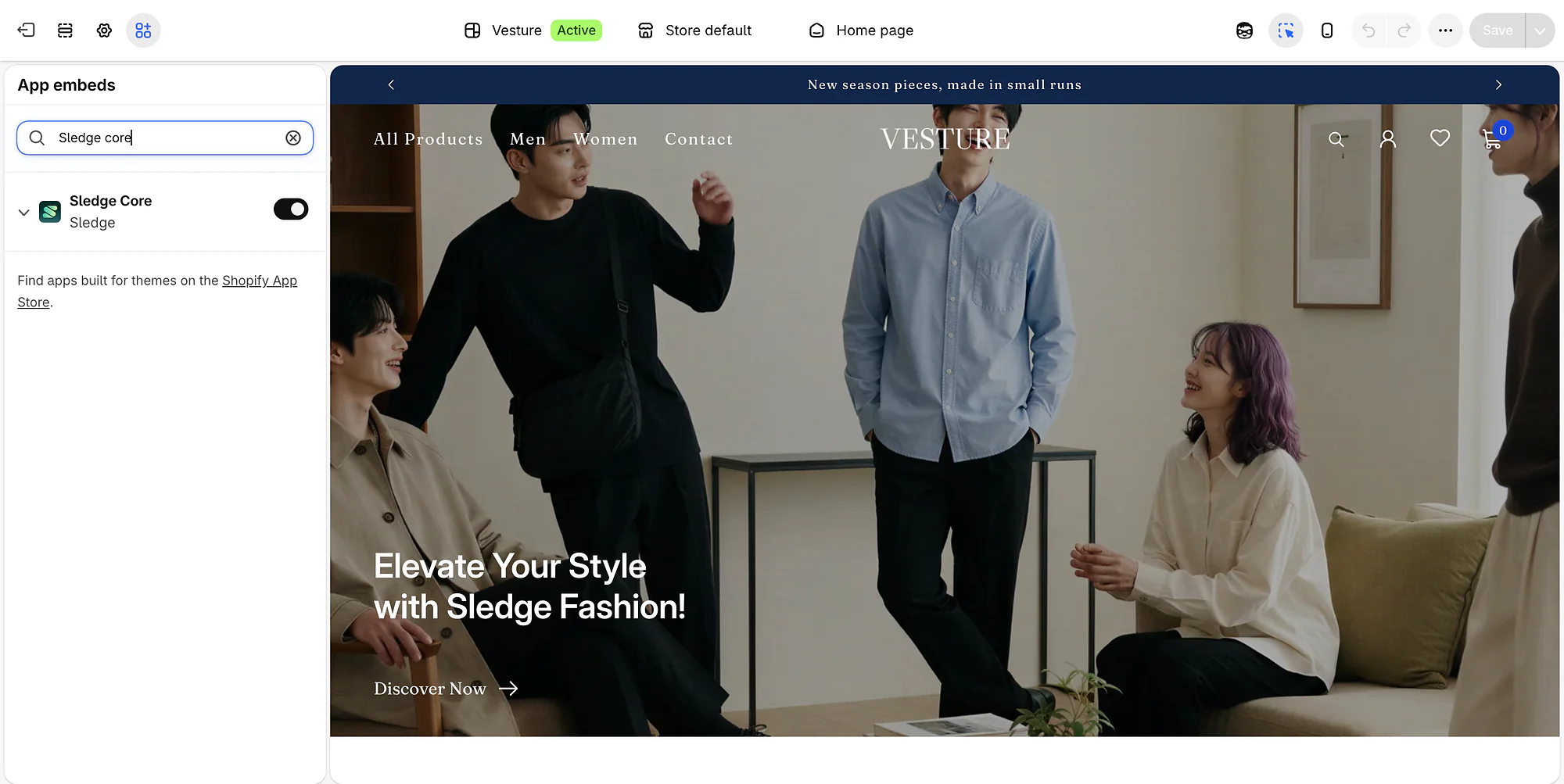
    Under App embeds, turn on Sledge Core, then click Save. If Vesture is still a draft, do this from Customize on Vesture instead, because Enable in theme opens your published theme.

    The Vesture theme editor with the App embeds panel open and Sledge Core switched on, Save at the top right. (open full size) Read about app embeds

Turn on the Sledge tools

  1. Turn on Search Required

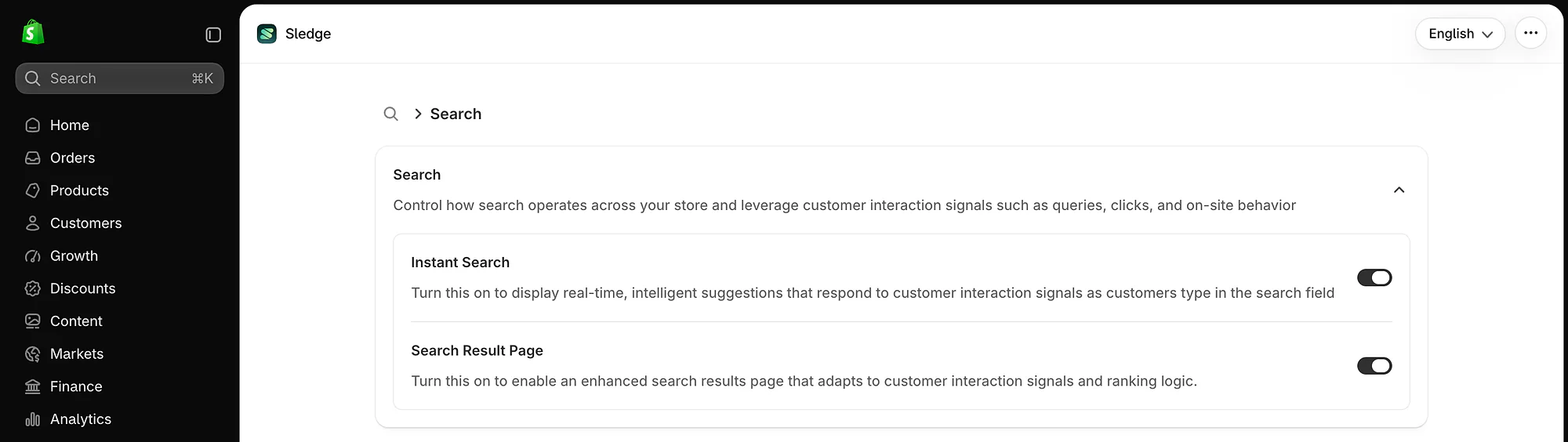
    In Sledge > Tools > Search, switch on Instant Search and Search Result Page.

    Sledge Tools, Search: Instant Search and Search Result Page, both switched on. (open full size)
  2. Turn on Product Filter Required

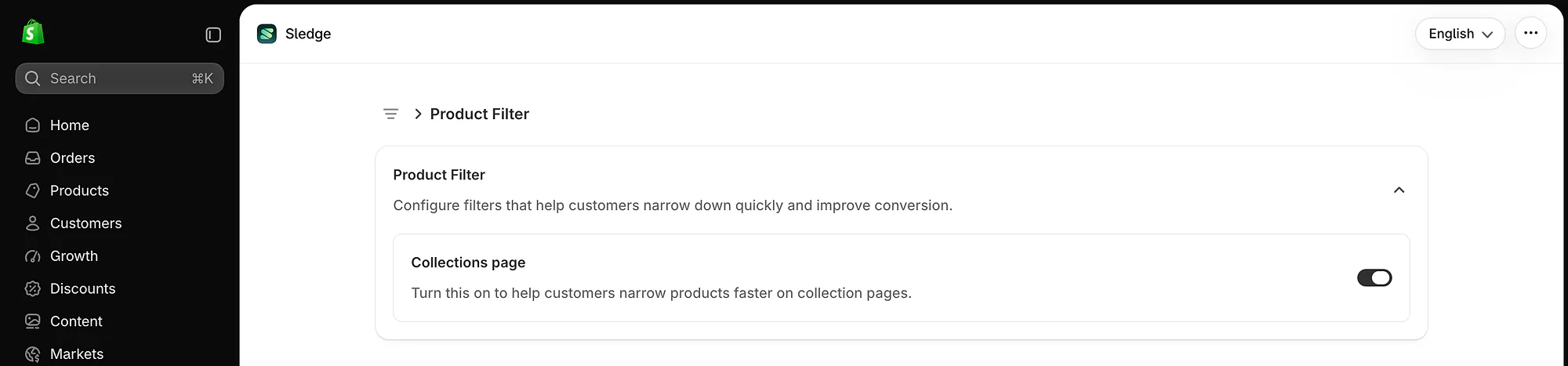
    In Sledge > Tools > Product Filter, switch on Collections page.

    Sledge Tools, Product Filter: Collections page switched on. (open full size)
  3. Turn on Cart Drawer Required

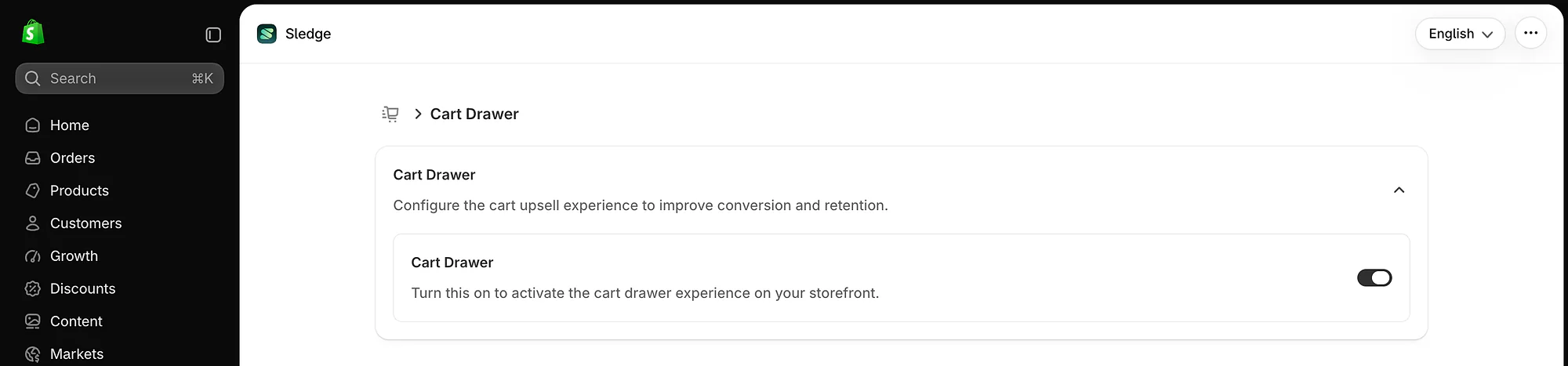
    In Sledge > Tools > Cart Drawer, switch on Cart Drawer.

    Sledge Tools, Cart Drawer: Cart Drawer switched on. (open full size)
  4. Turn on Wishlist Optional

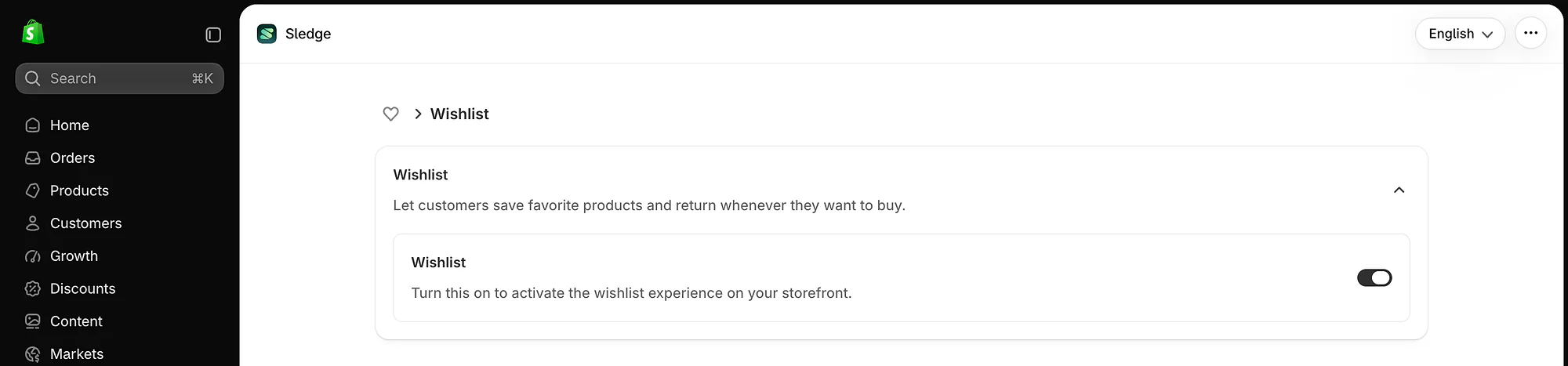
    In Sledge > Tools > Wishlist, switch on Wishlist. Sledge provides the wishlist page, so there is nothing else to set up.

    Sledge Tools, Wishlist: Wishlist switched on. (open full size)

Download Vesture

Vesture

Version 1.13.0, a zip for Online Store 2.0.

Best for
Fashion, apparel, accessories
Templates
14, including search and password
Sections
32, all editable in the theme editor
Built on
Online Store 2.0
Price
Free commercial use included

Questions about Vesture

How Vesture works, what is included, and how Sledge fits into the storefront.

Is Vesture really free?

Yes. Download the zip from the Vesture page, upload it to Shopify, publish it, and change anything you want. The licence file sits inside the theme, and it covers commercial use.

Do I have to install Sledge to use it?

You can publish Vesture without it, but it will not work as a store. Filters, instant search, the search results page and the cart drawer are run by the Sledge app, so without it the search results page and collection pages show no products and search does not work. Everything else is the theme's own and works the moment you publish.

Will Sledge edit my theme files?

No. Sledge loads through the app embed. Turn the embed off and Sledge stops loading on the storefront.

Which Shopify plan do I need?

Any plan that lets you upload a theme. There is no separate charge for Vesture, and nothing inside it is locked to a plan tier.

Can I edit the theme myself?

Yes. It is an ordinary Online Store 2.0 theme. Every section is editable in the theme editor, every file is yours to change, and nothing in it is locked.

What support comes with a free theme?

The theme is published as it is, so there is no support queue behind it. The app side is different: Sledge has its own support, and anything about filters, search or the cart drawer belongs there.

Will there be more themes?

Yes. Vesture is the first. New releases land on sledge-app.com before anywhere else, and they will be free on the same terms.

Ready to install
Vesture?

The install guide above walks you from upload to publish. When Sledge is switched on, filters, instant search and the cart drawer work the way they do in the demo store.

Open the Vesture demo store

The demo store is locked with a password. On the page that opens, scroll to “Are you the store owner?” at the bottom, enter the password into the Password field and click Enter.

Password: sledge

Vesture screenshots

  • Vesture home page: a full-width hero of models in casual wear under a large headline, a Men and Women product grid with sale badges, sizes and colour swatches, split Women's and Men's collection banners and new arrivals.
    1 / 13 Home page
  • Sledge instant search open on Vesture for the query basic: popular searches, a matching page and article, a Women's Everyday Basics Multi-Pack bundle offer, a Mix and Match promotional banner, and product cards with discount badges, sizes, colour swatches and prices.
    2 / 13 Instant search by Sledge
  • Vesture product page for the Oxford Button-Up Shirt with a Sledge add-on: the sale price, size and colour options, a discounted Nylon Shoulder Bag add-on with a toggle, the quantity selector and Add to Cart.
    3 / 13 Product add-ons by Sledge
  • Vesture men's collection page with Sledge filters: a banner, a filter sidebar for price, category, size, colour and brand, a search bar with an example query, a Men's Everyday Essentials Multi-Pack bundle offer, a product grid with Special Offer, Subscribe and Save, Pre-order and Restocked badges and a Mix and Match banner, a Best Seller carousel and the footer.
    4 / 13 Men's collection with Sledge filters
  • Vesture women's collection page with Sledge filters: a banner, a filter sidebar for price, category, size, colour and brand, a search bar with an example query, a Women's Everyday Basics Multi-Pack bundle offer, a product grid with Special Offer, Pre-order, Restocked and Subscribe and Save badges and a Mix and Match banner, and a Best Seller carousel.
    5 / 13 Women's collection with Sledge filters
  • Sledge search results page on Vesture for basic: Products, Pages and Articles tabs, a filter sidebar for price, category, size, colour and brand, a bundle offer, a Mix and Match banner and product cards with discount badges.
    6 / 13 Search results page by Sledge
  • Vesture product page for the Zip-Up Hoodie with a Sledge Buy X Get Y bundle: a photo gallery, the sale price, size and colour options, a Bundle and Save block offering Buy 1 get 1 at 50 percent off with the second hoodie free, a Buy 2 get 1 option, Add to Cart, the description, and shipping and care sections.
    7 / 13 Buy X Get Y bundle by Sledge
  • Vesture product page for the Soft Knit Dress with a Sledge subscription: a photo gallery, the sale price, size and colour options, a choice between a one time purchase and Subscription and Save at 13 percent off, an order frequency of every 3 months, the quantity selector, Add to Cart, the description, and shipping and care sections.
    8 / 13 Subscription by Sledge
  • Sledge build your own bundle on Vesture: a Mix and Match trousers pack for him and her with a 25 percent tier reached, two selected products marked with a check, and a bundle bar showing both picks, the discounted total and Add bundle to cart.
    9 / 13 Build your own bundle by Sledge
  • Vesture product page for the Linen Blend Shirt with Sledge pre-order: a Pre-order badge on the product photo, the sale price, size and colour options with Natural selected, the quantity selector, a Pre-order button in place of Add to Cart, the description, and shipping and care sections.
    10 / 13 Pre-order by Sledge
  • Vesture product page for a sold out Classic Skirt with the Sledge back in stock form open: a Notify Me dialog asking for an email and a phone number with a country code, a consent note and a Notify Me button.
    11 / 13 Back in stock by Sledge
  • Sledge wishlist page on Vesture: My Wishlist with a share button, a product search, Clear Wishlist, sorting by newest, two saved products, Relaxed Fit Chinos and Straight Leg Jeans, with sizes, colour swatches and prices, and the footer with the large Vesture wordmark.
    12 / 13 Wishlist by Sledge
  • The Sledge cart drawer on Vesture: a progress bar toward free shipping, a Mix and Match trousers bundle with its discount, complete the look recommendations, a shipping protection toggle, an order note, the discount, subtotal and total, and the checkout button.
    13 / 13 Cart drawer by Sledge

How to install Vesture

  • Shopify admin, Online Store: the Import menu beside Draft themes is open, showing Upload zip file.
    Step 2. Upload it to Shopify
  • The Sledge Product Filter & Search listing on the Shopify App Store, with the Install button under pricing and rating.
    Step 3. Install Sledge from the Shopify App Store
  • The Sledge onboarding in Shopify admin, Welcome to your Growth Engine, with the Turn on the app embed task open and its Enable in theme button.
    Step 4. Click Enable in theme
  • The Vesture theme editor with the App embeds panel open and Sledge Core switched on, Save at the top right.
    Step 5. Turn on Sledge Core and Save
  • Sledge Tools, Search: Instant Search and Search Result Page, both switched on.
    Step 6. Turn on Search
  • Sledge Tools, Product Filter: Collections page switched on.
    Step 7. Turn on Product Filter
  • Sledge Tools, Cart Drawer: Cart Drawer switched on.
    Step 8. Turn on Cart Drawer
  • Sledge Tools, Wishlist: Wishlist switched on.
    Step 9. Turn on Wishlist