
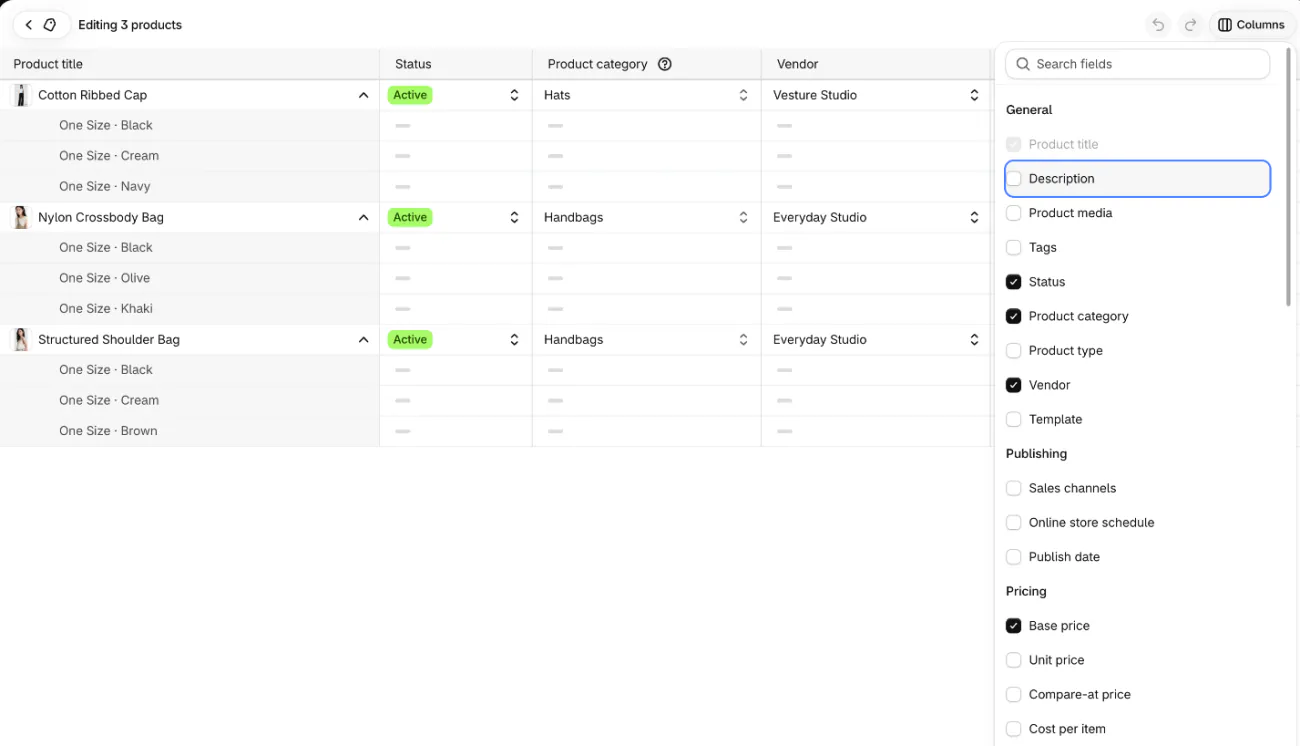
To use the Shopify bulk editor, open Products, tick the products and click Bulk edit. Pick the fields to change with Columns, then type in the cells or drag a cell's fill handle down a column and click Save. Stock for many products with sizes is edited from Inventory instead.
Say 150 products still show last season's crossed-out old price. Opening each one takes an afternoon. In the bulk editor they share one table, so one value dragged down a column fills every row it crosses.
Where do you find the Shopify bulk editor?
Tick items in a Shopify list and click Bulk edit: they open as a table with one row for each product or variant and one column for each field. The same table edits collections and customers. A variant is one size or color of a product.

Which list you start from depends on what you change.
| To change | Start from | Then |
|---|---|---|
| Products | Products | Tick the products and click Bulk edit. |
| The variants of one product | That product's page, in its Variants section | Tick the variants and click Bulk edit. |
| Variants of many products, and their stock | Products, then Inventory | Tick the variants and click Bulk edit. |
| Collections | The Collections list | Tick the rows and click Bulk edit. |
| Customers | The Customers list | Tick the rows and open the bulk editor. |
To take every product, open the menu that counts your ticks, such as "3 selected", and choose "Select all in this store". "Select all 50 on page" takes only the rows on screen.
From Shopify's Help Center pages on bulk editing, bulk editing inventory, editing variants, bulk actions, product types, tag formats, exporting products, editing metafields in bulk and fixing metafield validation errors, read November 23, 2026.
How do you edit many products at once?
Choose the columns first, then type or drag: a value dragged down a column fills each cell you drag across.
- Under Products, tick the products to change.
- Click "Bulk edit". The products open as a table, one row each, with each product's variants listed under it in grey.
- Click "Columns", the menu that adds and removes fields, and tick the fields to change, such as Base price, SKU or Compare-at price. Untick the rest so the table shows only what you change. The more fields you change at once, the longer saving takes.
- Click a cell and type, or drag across several cells to change them together. The arrow keys move between cells.
- To copy one value down a column, drag the cell's fill handle across the cells below it.
- Click "Save". If Shopify shows an error, fix it and click "Save" again.
Shift-click selects a range of cells. Command-click on a Mac, or Alt-click on a PC, selects cells that sit apart.
Back to the 150 products with last season's old price. Tick them, open Columns and tick Compare-at price, the field behind the crossed-out old price. Type the compare-at price all 150 should show in the first cell and drag its fill handle down the column. The cells you drag across take that value, and Save keeps it. Putting a price cut next to the old price is markdown pricing.
How do you bulk edit variants in Shopify?
Variants edit in the same table: open the product, tick its variants in the Variants section and click Bulk edit. To take them all, tick the box at the top of that section.
To change variants across many products, use Inventory instead. Under Products, click Inventory, tick the variants and click "Bulk edit". The table lists variants from every product, and Columns adds price, compare-at price, cost, SKU, barcode and weight.
Two catches. A variant whose stock isn't tracked doesn't show on Inventory at all. And a product page's own Variants list edits only a variant's picture, price and stock for each location, so click Bulk edit there for the other fields.
Neither table has a column for a variant's size or color, and each variant's title shows in grey. Change the size or color in the product's Variants section, and Shopify variants covers how, with the limits.
How do you bulk edit inventory in Shopify?
The inventory editor sets new totals instead of adding to your stock, so a variant at 100 that you set to 150 is exactly 150.
Under Products, click Inventory, tick the variants and click "Bulk edit". Click Columns and tick each location under "Quantities by location" to show its Available and On hand columns, then type the new totals. For one or two products, a product's own Variants section opens the same editor, and Inventory suits more than a few.

- A change shows as the old number, an arrow and the new number, green for an increase and red for a decrease.
- The editor keeps no record of stock movements, and Shopify inventory management covers counting and reordering.
- If stock changes while you edit, an "Inventory mismatch" box offers Save suggested, Save original or Discard, and saving asks you to confirm with "Save changes".
- Variants list in the order of the Inventory page's sort, not grouped by product, so sort that list before you open the editor.
How do you bulk edit tags, product types and custom product details?
Vendor, product type and custom product details are columns in the bulk editor, and tags have their own Add tags and Remove tags actions. Shoppers filter by all four.
- Vendor. It is ticked in Columns already. Spell each brand one way.
- Product type. Tick the products and click Bulk edit. Product type is off until you tick it under Columns, then type a value in each cell or add a new type.
- Tags. Tick the products, click the "..." menu in the bar above the list and choose Add tags or Remove tags. Use ordinary letters, numbers and hyphens, because Shopify ignores special characters in tags or treats tags that differ only by them as the same.
- Custom product details. Click Columns and look under "Category Metafields", Shopify's group for the custom product details tied to a product's category, such as fabric, care instructions or size. If you defined your own, look for them in the same menu. A detail held on one size or color is edited in the variant bulk editor, with the same kind of column.
A save that fails can trace back to a bad custom product detail, and the final section covers that error.
Sledge has no bulk editor and doesn't import or export your products. Its filters read the fields you tidy here. Each wording becomes its own filter value, so Navy and Dark blue show as two choices. Pick one wording for each value, and use Merge Value, Sledge's tool for joining filter values into one label, on any that remain.
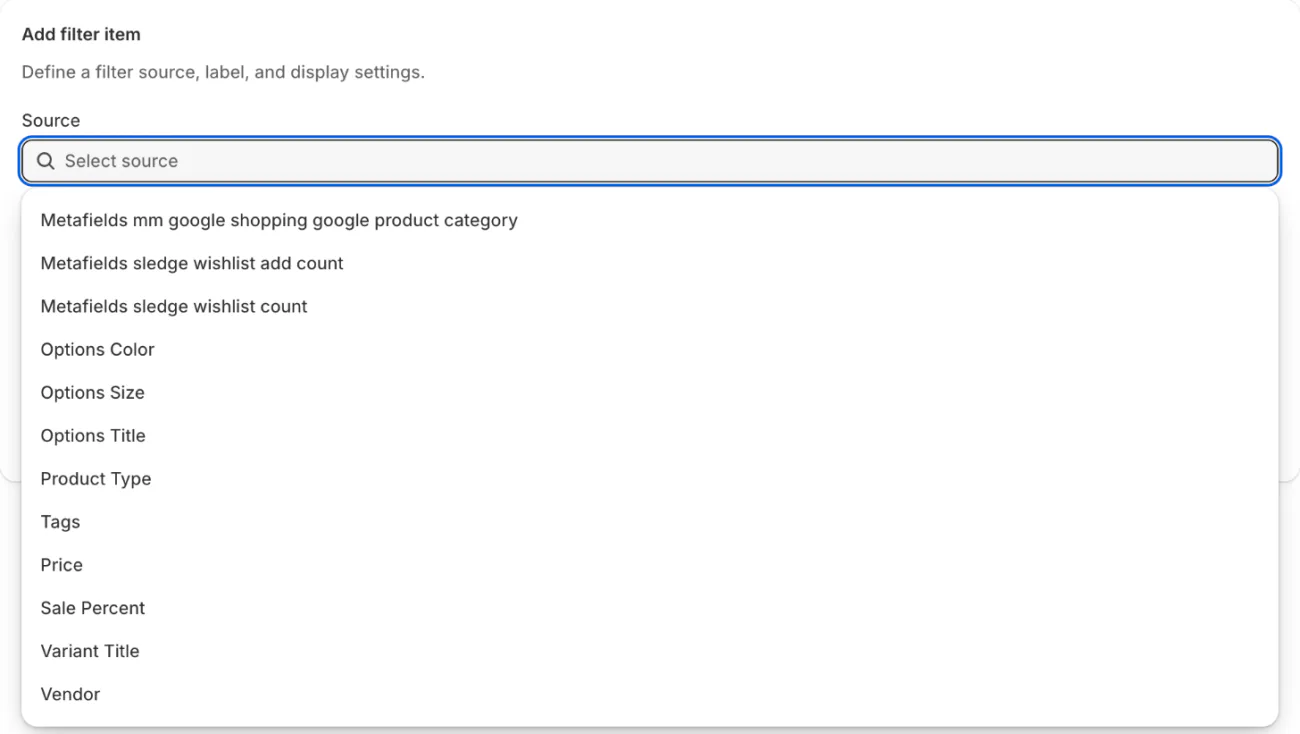
Shopify's own filters can read tags and custom product details too, and how to filter Shopify collections by metafield has the steps for the custom ones.
What can't the bulk editor edit, and when is a CSV file better?
The editor covers products, variants, collections, inventory and customers, but no longer blog posts, pages or URL redirects, and Shopify points to a CSV file for larger lists.
For blog posts, pages and redirects, Shopify points to third-party apps. For a larger number of products, inventory counts or customers, it points to a CSV file, a spreadsheet saved as plain text. Shopify sends a confirmation email after you upload one. How to import products to Shopify has the steps, including what a blank cell does when you overwrite products. To add products rather than change them, start with how to add products to Shopify.
Shopify's page on bulk editing describes no undo for a saved edit. Before a big change, tick the products, click Export, choose the products you selected and keep the file.
Shopify's Sidekick can also draft bulk edits on a "Store changes" card for you to review, and Shopify Sidekick covers it. Other apps add bulk-edit features of their own.
How do you fix "Update the invalid values, then save again"?
Add the SKU column and the custom product details columns, then review the values, because an invalid value can sit in a column you are not showing.
Shopify names two common causes:
- A variant is missing a required SKU, your own stock code.
- A custom product detail holds a value its own rules reject.
Click Columns and tick SKU and the details under "Category Metafields", plus any you defined yourself. Then look for a blank SKU or a custom detail that breaks its rules, fix it and click Save again.
With many custom details to fix, start on the Invalid metafield values page, which lists each bad value. Shopify marks a detail with bad values "Fixes needed", and a "View invalid metafields" link opens the page.
FAQ
Questions, answered
-

14-day free trial
Explore Sledge on your store before you decide to commit.
-

No credit card required
Start improving your store with no upfront commitment.
-

Setup in minutes
Get Sledge running without a lengthy setup process.
-

Built to grow sales
Turn shopper behavior into actions that help you sell more.
How do you bulk edit variants in Shopify?
Open the product, tick the variants in the Variants section and click Bulk edit, or tick the top box to select them all. To change variants across many products, go to Products, then Inventory, tick the variants and click Bulk edit. Columns adds price, SKU, barcode, weight and more. Click Save when done.
Can you bulk edit inventory in Shopify?
Yes, from Products, then Inventory. Tick the variants, click Bulk edit and type new totals. Each number replaces the old one instead of adding to it, so typing 150 over 100 leaves 150. The editor keeps no record of stock movements. If stock changes while you edit, an Inventory mismatch box offers Save suggested, Save original or Discard.
How many products can you bulk edit at once in Shopify?
Shopify's page on bulk editing gives no number. It says the more fields you change at once, the longer saving takes, and it points to a CSV file for a larger number of products, inventory counts or customers. It also says Microsoft Edge can cause errors because of a limited address length, so try Chrome, Firefox or Safari.
Can you undo a bulk edit in Shopify?
Shopify's page on bulk editing describes no undo for a saved edit, so export first. Tick the products, click Export, choose the selected products and keep the file. It holds the old values of the fields a product CSV carries. Importing it with Overwrite products with matching handles ticked puts them back, so read how a CSV import works first.
Can you bulk edit metafields in Shopify?
Yes, for products. Select them, click Bulk edit, click Columns and tick the details you want. Details tied to a product's category, such as fabric or care instructions, sit under "Category Metafields". If you defined your own details, look for them in the same menu. Variant ones are edited in the variant bulk editor with the same kind of column, because the product CSV file does not carry them. Settings, then "Metafields and metaobjects", the area for your custom details, lists the ones you have defined.
Do you need an app to bulk edit in Shopify?
Not for most jobs. The bulk editor is built into your admin and covers products, variants, collections, inventory and customers. Shopify says bulk editing of blog posts, pages and URL redirects is no longer available and points to third-party apps for those. Other apps add their own bulk-edit features.
Cleaned up your catalog? Put it to work in your filters.
Sledge has no bulk editor and doesn't import or export your products. Once they are tidy in Shopify, its filters can be built from your vendor, product type, tags, options and custom product details. Try it free for 14 days. Growth Intelligence turns on when you pick a paid plan, and its suggested fixes add up to one dollar figure, labeled Est. potential.