Your Shopify password page is the landing page visitors see while the store is in private mode, which older guides call password protection. Set its password and message under Online Store, Preferences, edit its look in the theme editor, and remove it by choosing Public, then Launch store.
Say you send your new store's address to a friend. They see a heading you never wrote and a box asking for a password. Nothing is broken. This is the password page that comes with your theme, and you can change what it says, how it looks and who gets in.
What is the Shopify password page?
The password page is the one page visitors see while your store is in private mode. Private mode hides every page from visitors and search engines, and shows this page with a box for the password you choose. A new store starts private, and so does a store on a free trial.
Older guides use other names for the same things, so match your screen to this key.
| If a guide or an older screen says | Your admin says today |
|---|---|
| Password protection, with the password page on | Private mode, a switch under Store access in Preferences. The access menu on the Online Store page reads Private. |
| Restrict access to visitors with the password | The same Private mode switch. |
| Remove password protection | Public, then Launch store. The button reads Update after the first time. |
| Opening soon page | The password page, listed as Password in the theme editor. |
Labels as Shopify's Help Center prints them, read November 23, 2026. The Preferences and Password page labels also match a store admin opened that day.
While the store is private, click your store's domain on the Online Store page to see the password page, or open the access menu, whose preview shows the same page. Shopify's Help Center steps for the Shopify app on your phone still say Password protection.
How do you change the message on the password page?
Type it in Message to your visitors, under Online Store, Preferences, and click Save.
- Go to Online Store, then Preferences.
- In the Store access card, click "Message to your visitors", a box that takes up to 5,000 characters.
- Type your message and click "Save". Leave the box blank for no message.
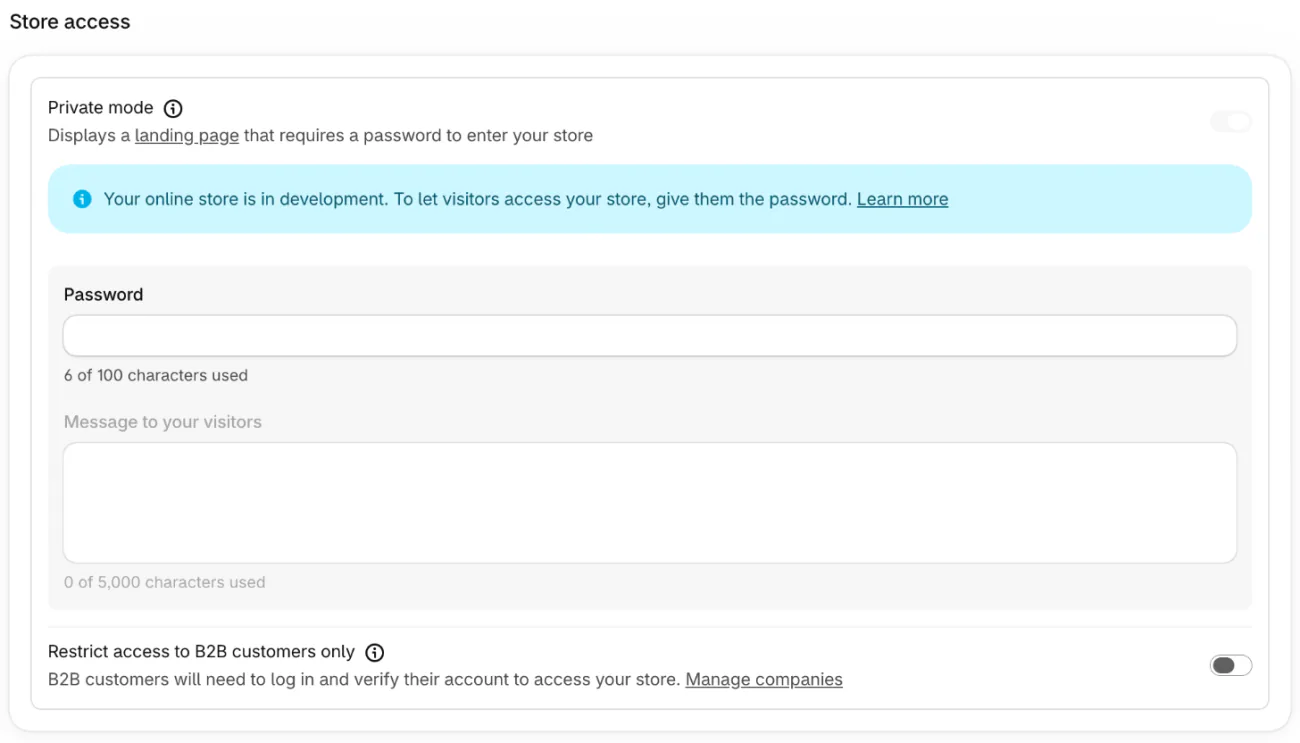
On a development store, a store made for building and testing, the message box is greyed and takes no typing.
Your theme decides where the message shows. In Dawn, a Shopify theme, it sits under the logo or shop name, in a section called Password header. Horizon shows it after its logo, two lines of text and its email box.
Your theme can also show its own heading and words, which you edit in the theme editor, as the next section shows. So your message can sit under a heading you didn't expect. If you can't find your message, open the Password page in the theme editor, then look at your store address in a private browser window, the way a visitor does.
How do you edit the password page in the theme editor?
Open Edit theme, choose Password in the Home page menu, click a section and Save. The theme editor is the screen where you change how your theme looks.
- Go to Online Store, then Themes.
- Find your theme and click "Edit theme".
- Click the menu at the top that reads "Home page", and choose "Password".
- Click a section, change its settings and click "Save".
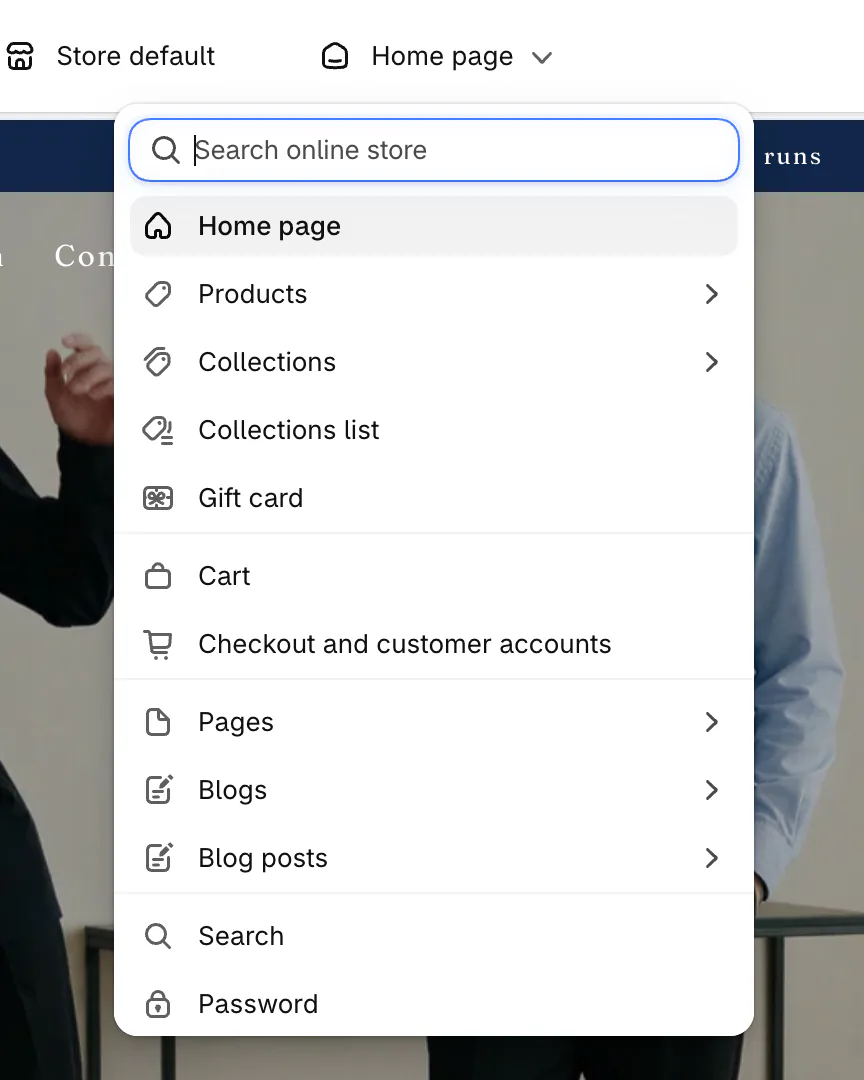
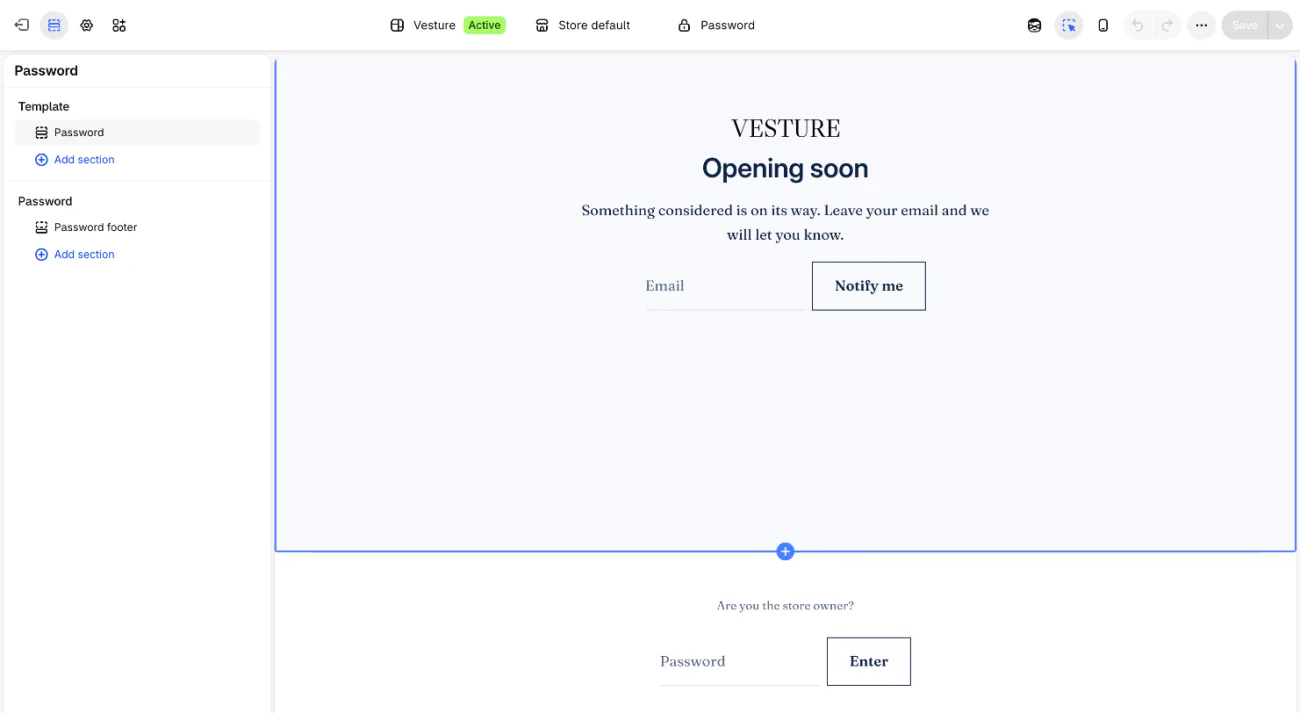
Shopify's Help Center says a private store's access menu has a preview of this page with an Edit button that opens it in the editor. The gear icon, "Theme settings", holds typography, colors, social links and the favicon, the small icon in a browser tab. Those settings reach your whole store, not only this page.
The sections differ by theme and version. Three examples:
- Dawn has Password header, which shows your logo, the message and the password box, then Password footer and Email signup banner. The banner's heading starts as "Opening soon", and its settings include Background image, Show background image and Overlay opacity.
- Horizon has one Password section whose logo, text and email box are blocks, the parts inside a section.
- Vesture 1.12.0, a free theme, has a Password section and a Password footer. Its preview shows a heading, two short sentences, an email box with a Notify me button and a prompt for the store owner, and the section's settings include an Email signup switch.
To swap the background picture in Dawn, change its Background image setting. Some themes also show a "Powered by Shopify" line in a box of its own, and the guide to removing Powered by Shopify covers it. Hiding the footer, or anything the settings can't do, takes a developer. Shopify's Help Center describes that route. It costs a developer's time, and a slip can break the page.
Where do the email signups on the password page go?
In Dawn, the Email signup banner is Shopify's own, so the addresses become customer profiles in Shopify, not entries in an app. Shopify's Help Center describes the banner as a way to subscribe to your email marketing from this page, and Dawn's editor notes that "Signups add customer profiles". The Help Center lists newsletter signups from your store on the Customers page, in the Email subscribers segment, so look there first. Other themes name the box differently, so open its settings and read any note beside it. Vesture has an Email signup switch in its Password section and no note beside it, so check Customers after a test signup.
Shopify's launch steps don't include emailing your signups, so the launch email is yours to write. Product launch email gives four sample emails to adapt, and Shopify's email marketing covers what its own tool does and costs. A countdown, a text-message signup or a waitlist on this page can come from a section your theme offers or an app built for it. Sledge adds none of these to the password page and receives no signups from it.
How do you set, share or change the store password?
Set the password in the Password box under Store access, and keep it different from your admin login. This password is for visitors. Your admin login is the one you use to open Shopify, and Shopify says not to reuse it here.
- Go to Online Store, then Preferences.
- In Store access, switch on "Private mode".
- Type the "Password" and click "Save".
You can also set the password from the access menu: on the Online Store page, choose Private, type the Password and click Update. To change the password later, type a new one the same way.
Share the password with the people who should see the store. To show a design to someone with no password, make a visitor preview link of a theme that isn't published. Under Online Store, Themes, open that theme's three-dot menu, click Preview, then click the link button in the preview bar. Anyone with the link can look. It expires after 2 days, and Shopify says you can't share a preview of your published theme.
The "Restrict access to B2B customers only" switch under the password and message is a different lock. It suits a store sold only to signed-in business buyers, and Shopify B2B covers it.
How do you remove the password page?
Open the access menu on Online Store, choose Public and click Launch store. The button reads Update after the first time.
- Go to Online Store and click "Private".
- Choose "Public".
- Click "Launch store".
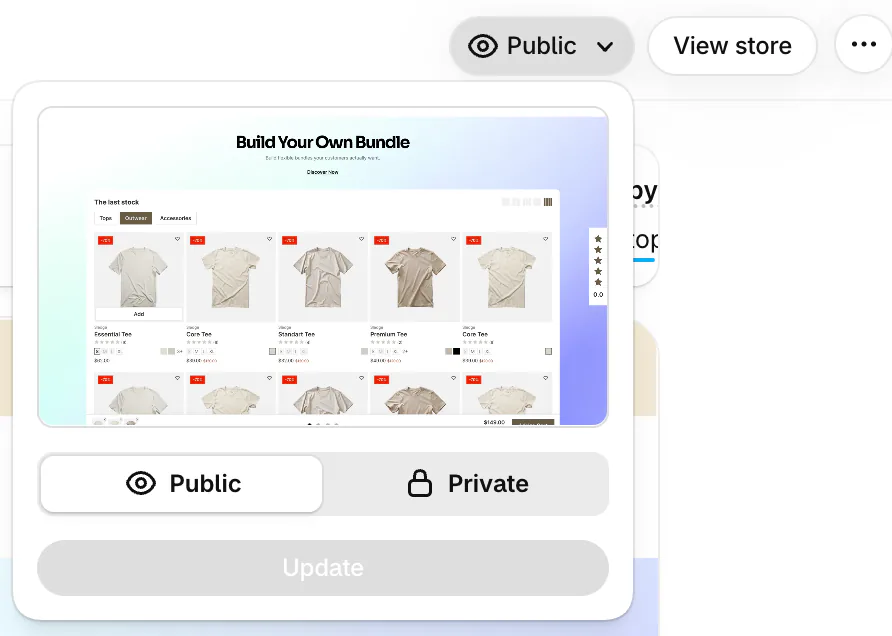
You can also switch off Private mode under Online Store, Preferences, in Store access, and click Save.
Before the first launch, Shopify asks for a subscription plan, a store address under Settings, General, Business details, and a payment method with test mode off. If you pick a plan during your free trial, you aren't charged subscription fees until the trial ends. In the Shopify app, a store on a trial or with no business address is prompted to finish that setup before the password can come off. The ecommerce checklist covers the test order and the other steps, and Shopify's Help Center has the launch steps.
To put the gate back, click Public, choose Private and click Update, or switch Private mode on under Preferences and click Save. After launch, the Preview store button reads View store.
From Shopify's Help Center pages on restricting access to your store and launching it, read November 23, 2026.
What changes when the password comes off?
Your published pages become visible to visitors and to search engines, so finish the checks first.
- Search engines can now read your store. The Shopify SEO checklist lists what to check.
- Place a test order before you open. The ecommerce checklist shows how.
- A product with no stock stops selling at zero by default. Under Inventory on the product's page, click the "Sell when out of stock" button, then tick the box "Continue selling when out of stock" to let it take orders after zero.
Sledge's pre-order handles that setting for the products you pick. It switches on Continue selling only where it was off. It adds a Pre-order button and a note in the cart, at checkout and in the order email. When you turn the pre-order off or delete it, Sledge switches back only the settings it changed. Notify me or pre-order helps you choose between the two.
Sledge's Analytics has little to read before shoppers arrive. Once the store is public, Analytics shows where shoppers' visits end.
FAQ
Questions, answered
-

14-day free trial
Explore Sledge on your store before you decide to commit.
-

No credit card required
Start improving your store with no upfront commitment.
-

Setup in minutes
Get Sledge running without a lengthy setup process.
-

Built to grow sales
Turn shopper behavior into actions that help you sell more.
How do you edit the Shopify password page?
Go to Online Store, then Themes, click Edit theme, open the Home page menu at the top and choose Password. Click a section, change its text, image or colors, and click Save. Shopify's Help Center says the Edit button on a private store's access menu preview opens the same screen. Sections differ by theme.
Why isn't my password page message showing?
The text you type in Message to your visitors, under Online Store, Preferences, shows wherever your theme puts it. Your theme can also show its own heading and words, set in the theme editor, so open the Password page there and edit those words. Then open your store in a private browser window, which is how visitors see it.
How do you change your Shopify store password?
Go to Online Store, then Preferences, type a new password in the Password box under Store access and click Save. The access menu on the Online Store page also takes it: choose Private, type the password and click Update. Shopify says not to reuse the password you use to log in to your admin.
How do you remove the password from a Shopify store?
On the Online Store page, click Private, choose Public and click Launch store, which reads Update after the first time. You can also turn off Private mode under Online Store, then Preferences, and click Save. Shopify first asks for a plan, a store address and a payment method with test mode off.
Why can't I see my password page on a development store?
Shopify's documentation says a development store always shows its own password page, not your custom one. The custom page doesn't control access to a development store, but you can still view and edit it from the admin, in the theme editor's Password page. Judge your edits there. The Message to your visitors box is greyed on a development store.
Does Sledge show anything on the password page?
No. Sledge skips the password page, so it adds nothing there. Once your store is public, its pre-order can keep taking orders on a product you pick that isn't in stock yet, with a Pre-order button and a note in the cart, at checkout and in the order email.
The password is gone. Can shoppers order what isn't in stock yet?
Sledge adds nothing to your password page. Once your store is public, try it free for 14 days and open a pre-order on a product that isn't in stock yet, with a Pre-order button and a note shoppers see in the cart, at checkout and in the order email. Growth Intelligence turns on when you pick a paid plan, and its suggested fixes add up to one dollar figure, labeled Est. potential.